Why do apps take up so much storage on macOS?
Bundled browsers, universal binaries and Application Support leftovers. What actually fills your disk, how to measure it, and what is safe to delete.
Updated September 29, 2026
The app you drag into Applications is usually the small part. A 400 MB install is rarely 400 MB of features: it is a copy of a web browser, a second copy of every binary for a Mac you do not own, a media toolkit the app brought along, and a pile of files the app writes somewhere else entirely and never cleans up.
Here is what each of those actually is, how to measure yours, and what is safe to remove.
Reason 1: the app brought its own browser
A large share of desktop apps are web apps in a native shell. Electron is the common one, and an Electron app ships Chromium and Node.js inside its own bundle. A hello-world Electron app on macOS lands around 150 MB before anyone adds a feature to it.
The important detail is that nothing is shared. Ten Electron apps means ten copies of Chromium on your disk, each on its own release schedule, each updating separately. Your chat app, your notes app and your screen recorder may be carrying three different builds of the same browser.
For the developer this is a sane trade. One codebase covers macOS, Windows and Linux, and the team ships features instead of maintaining three native apps. You pay for that convenience in gigabytes, which is a real cost that simply lands on someone other than the person who chose it.
Reason 2: universal binaries hold two Macs at once
Since the Apple Silicon transition, most apps ship as a universal binary: the same executable
compiled twice, once for arm64 and once for x86_64, both in one file. Your M-series Mac runs
one half and stores the other forever.
That roughly doubles the executable and every framework bundled next to it. You can see it yourself:
lipo -archs /Applications/Some.app/Contents/MacOS/Some
# arm64 x86_64  -> universal, half of it is dead weight on your machine
# arm64         -> built for your Mac only
Thinning it by hand is possible and not worth it. The next update puts it back.
Reason 3: bundled runtimes, toolkits and models
Beyond the browser, apps embed whatever they could not get from the system: an ffmpeg build for
media work, a Python or Java runtime, a games engine, an entire node_modules tree that was never
pruned for release.
The newer version of this is machine learning. On-device transcription, background removal and image generation ship model weights inside the app or download them on first launch. Those are often hundreds of megabytes on their own, and they are usually the single largest thing inside a modern "small" utility.
Reason 4: most of it is not in the app bundle
This is the one that surprises people. The .app in Applications is frequently the smallest
piece of an app's footprint. The rest lives in your home folder:
~/Library/Application Support/: projects, indexes, embedded databases, downloaded models~/Library/Containers/: the sandboxed equivalent for App Store apps~/Library/Caches/: thumbnails, previews, network caches that grow without limit~/Library/Developer/: if you have Xcode, this is often the largest folder on the disk
Dragging the app to the Trash leaves all of it behind. That is why a Mac that has been through a few years of tool churn reports tens of gigabytes belonging to software that is no longer installed.
Why "System Data" looks enormous
Open System Settings and the storage bar usually shows a huge, unexplained block. Most of it is not mysterious.
APFS takes local snapshots for Time Machine and keeps them on your internal disk until space is
needed. macOS counts them, and also counts "purgeable" space it will reclaim automatically the
moment something actually needs room. Finder's Get Info and du disagree about cloned files for
the same reason: two files can point at the same blocks on disk.
tmutil listlocalsnapshots /
If that lists a handful of snapshots, you have found your missing space, and you do not need to do anything about it. This is also why cleaner apps can report dramatic savings: they delete things macOS would have released on its own.
Measure yours before deleting anything
Four commands answer most of the question:
# Biggest apps, smallest first
du -sh /Applications/* | sort -h

# What apps have written outside their bundle
du -sh ~/Library/Application\ Support/* | sort -h | tail -20

# Is this app carrying a browser?
ls /Applications/Some.app/Contents/Frameworks | grep -i electron

# Is it carrying an architecture you do not use?
lipo -archs /Applications/Some.app/Contents/MacOS/Some
du on /Applications can take a minute the first time. Sorting smallest-first means the
offenders end up at the bottom of your terminal, next to the prompt.
What is worth deleting
In rough order of payoff:
- Apps you have not opened in a year, together with their folder in
~/Library/Application Support/. Check the folder name matches the app before removing it. - Xcode leftovers, if you write code.
~/Library/Developer/Xcode/DerivedDataregenerates, old iOS DeviceSupport directories are per-version, andxcrun simctl delete unavailableclears simulator runtimes for OS versions you no longer target. - Docker's disk image, which is one file that keeps its high-water mark long after the containers are gone.
- Old recordings and exports. For anyone who makes video, this outweighs every app on the machine combined. If those are Screen Records projects, what is actually inside one says which part is the heavy one and when it is safe to delete.
What is not worth your time: chasing caches, and paying for a cleaner. Caches come back within a day of normal use, and purgeable space is already handled.
The part where I have a stake
I build a Mac screen recorder, so this subject is not new to me.
Screen Records is 5.3 MB to download and 12.1 MB once it is in your Applications folder. It is written in Swift against frameworks macOS already ships, ScreenCaptureKit for capture and AVFoundation for editing and export, so there is no browser inside it and no media toolkit riding along beside it. Recorders with a comparable feature set routinely pass 500 MB installed, because they are carrying all of that in the bundle. When I measured six Mac screen recorders, the Electron framework alone was about 265 MB in each of Loom, Screen Studio and Screen Charm.
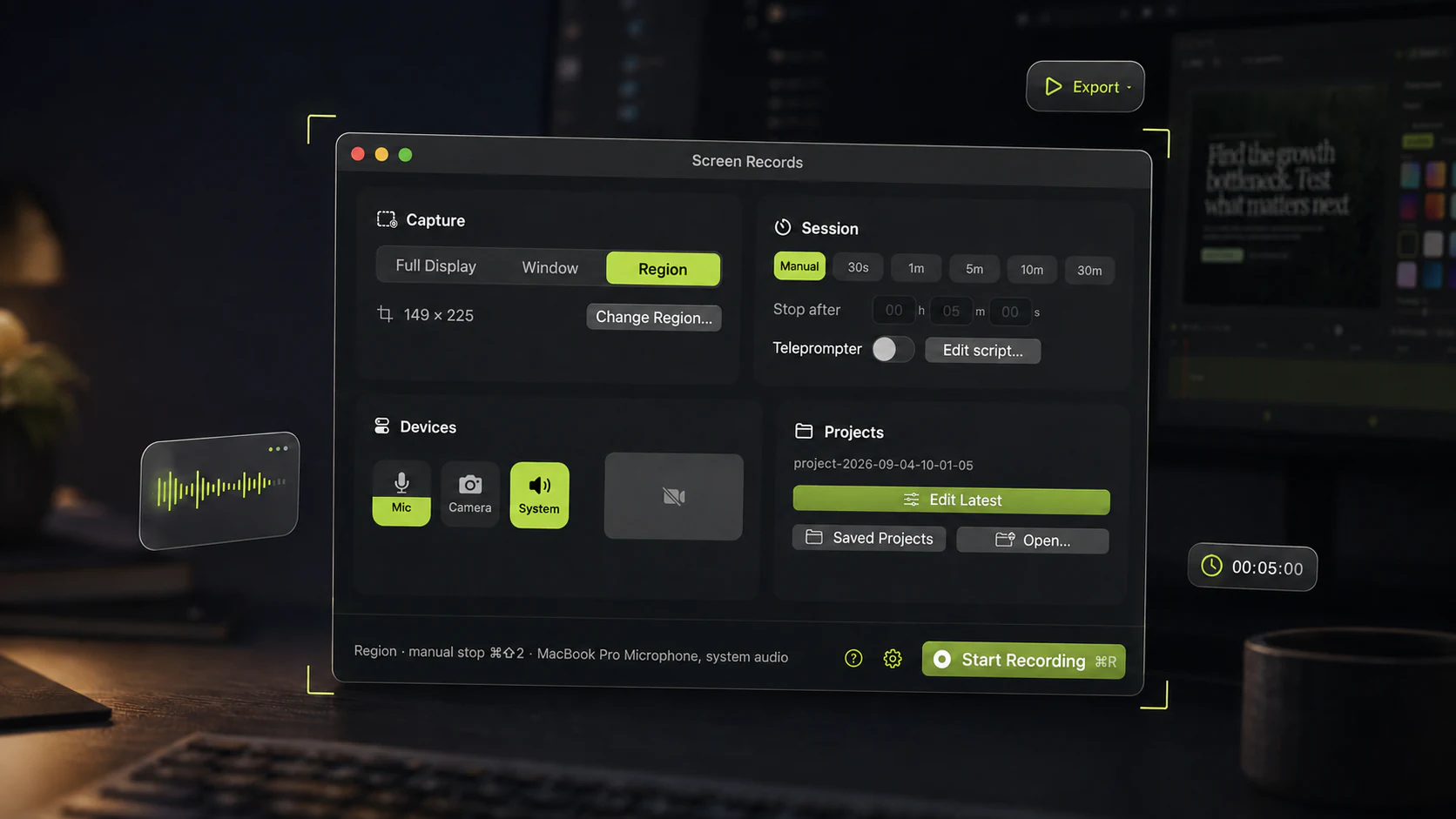
Two other decisions follow from the same thinking. Edits are non-destructive, which means a project stores the instructions for your cuts and zooms rather than a second copy of the video, so editing a 2 GB capture does not cost you another 2 GB. And projects live in a folder you pick, not in a hidden container, so you can find your footage later and delete what you no longer need without guessing what belongs to whom.
Being honest about the scale: the app size is not what fills your disk. Your recordings are, and they always will be. A capture that is far heavier than its length suggests usually has one specific cause, and it is a setting rather than a fact of life. But an app that downloads in about two seconds and does not scatter gigabytes through your Library is a better neighbour on a 256 GB MacBook than one that arrives with its own browser.
It is free to use, with no account, if you want to see what 12.1 MB buys you.
Share this post
Keep reading
- GuideHow to record a YouTube tutorial on your MacPick the query, make the screen readable, record in sections, and edit in four moves. Setup and export settings for screen tutorials people finish.
- GuideTurn a presentation into a video the same dayRecord the deck, your voice and your camera in one pass, then cut the fumbles. A method for conference pre-records, async updates and investor decks.
- Product updateIntroducing Screen Records 0.1.0Why we built a Mac screen recorder with an editor, what shipped in 0.1.0, and what a one-time license buys you.