Introducing Screen Records 0.1.0
Why we built a Mac screen recorder with an editor, what shipped in 0.1.0, and what a one-time license buys you.
Screen Records 0.1.0 is out. It records your Mac's screen and edits the result in the same app, and you pay for it once.
There are already screen recorders. Here is why we made another one.
The twenty minutes after you stop recording
Recording is solved. Every Mac does it, and ⇧⌘5 is genuinely fast.
What is not solved is everything after. You stop, and you have a file with a stumble at 0:14, a click nobody can see at 1:20, forty seconds of loading spinner, and audio that is half a notch too quiet. So you either send it as-is, re-record the whole thing, or open a video editor built for something else entirely.
That gap is the product. The recording opens straight into an editor that knows it is editing a screen recording, and nothing else.
What shipped in 0.1.0
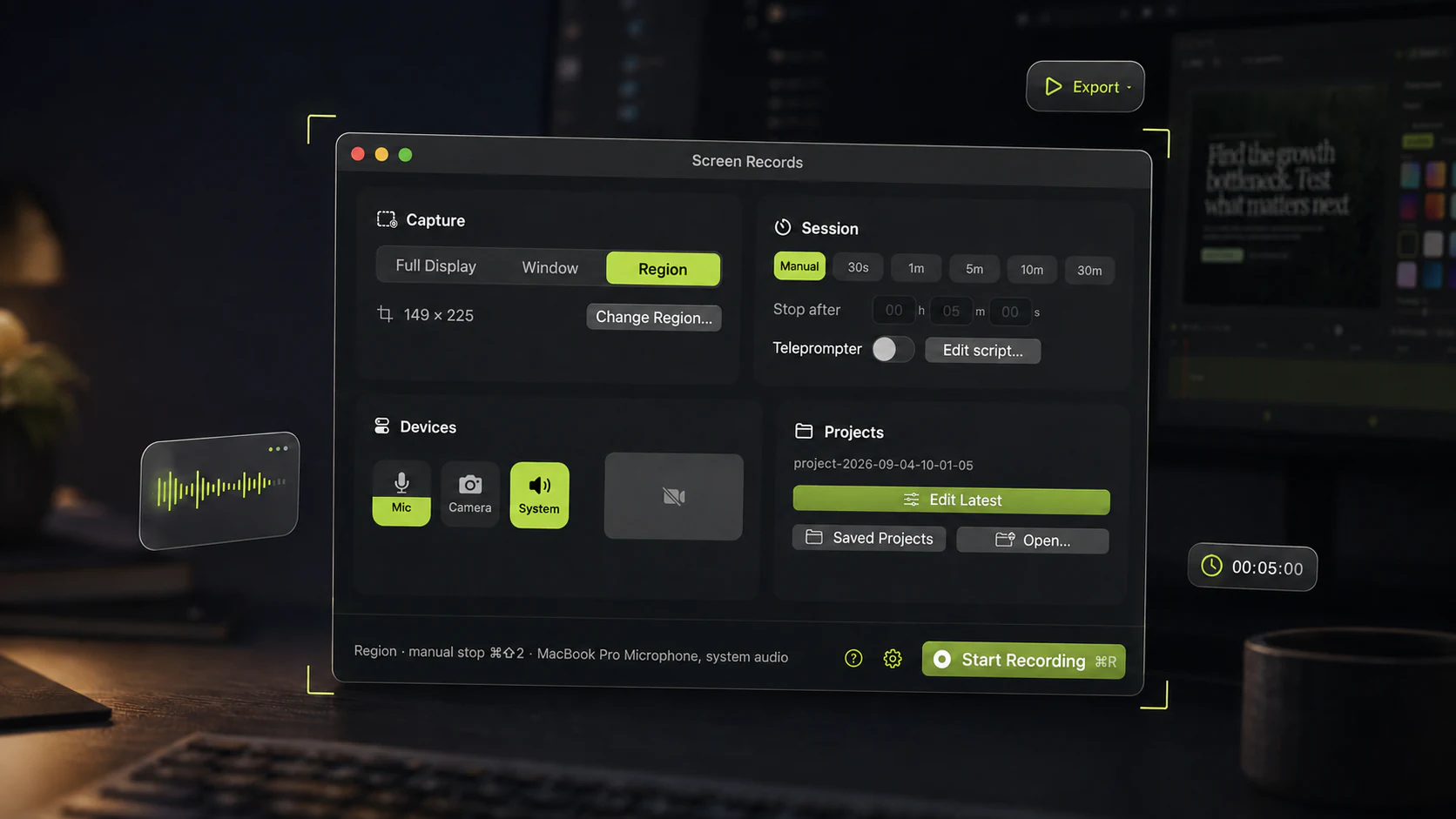
Capture. Full display, a single window, or a drawn region with the area outlined on screen while you record, so you can see the boundary instead of guessing. Preset durations, or manual with a global stop shortcut.
Devices. Microphone, camera and system audio as three independent toggles, recorded to separate tracks. The camera bubble takes a shape you choose and can blur its background live, on-device.
Controls that follow you. The recording controls stay visible across every macOS Space, including full-screen apps. Demoing something full-screen should not mean losing the stop button.
Pause and resume mid-recording. The door goes, a notification lands, a build takes ninety seconds. Hit pause, deal with it, hit resume, and the paused stretch never reaches the file, so there is nothing to cut out afterwards. Paused time does not count against a preset duration either. More on how pause works.
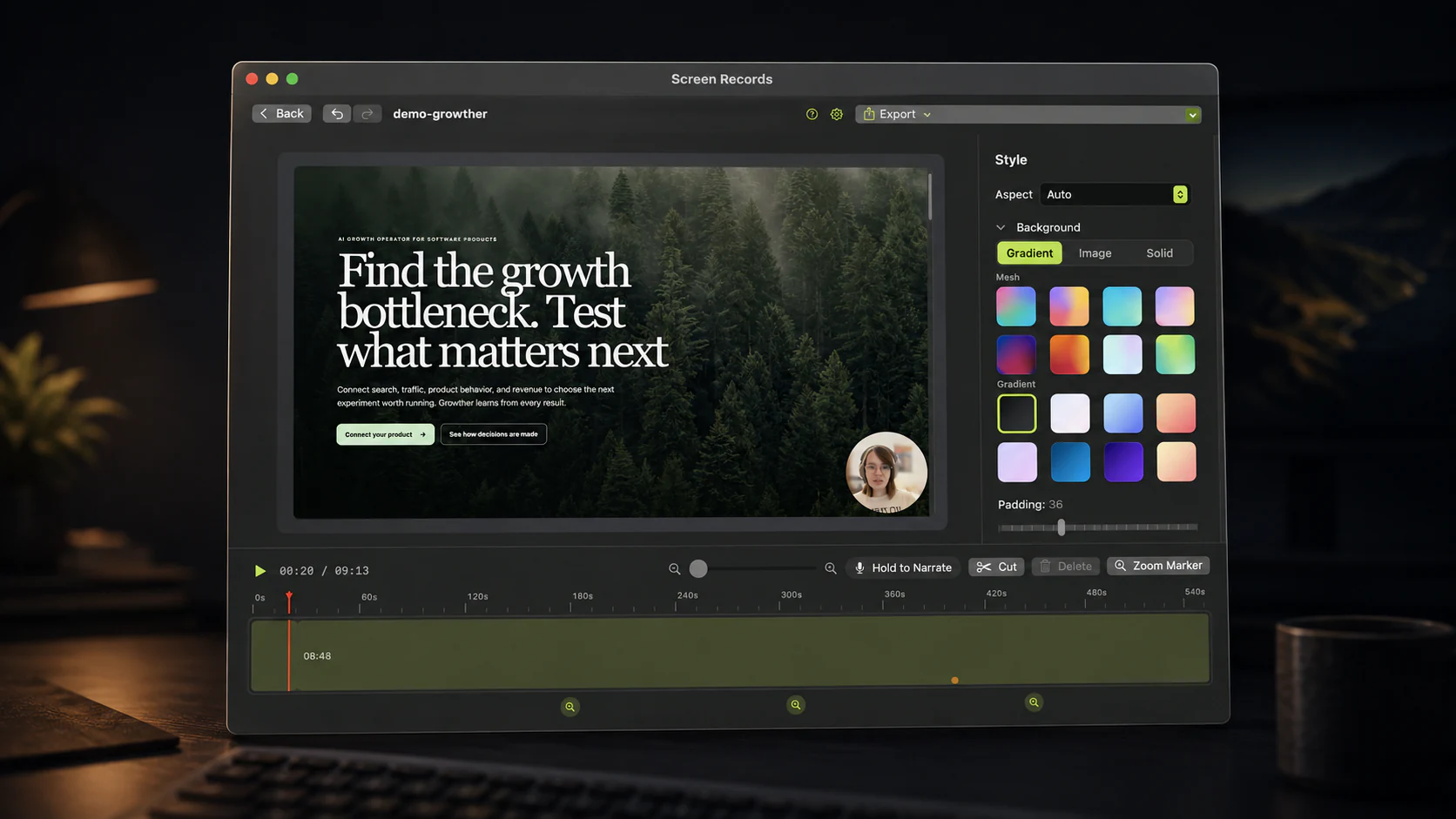
Editing. Split at the playhead, select, delete. Zoom markers with a depth choice and eased motion, so an emphasis reads as intentional rather than as a jump cut. Hold-to-narrate voiceover recorded straight over the timeline, so a bad sentence costs a sentence and not a take.
Presentation. Mesh, gradient, solid or image backgrounds with padding control, and aspect ratio presets for 16:9, vertical and square.
Export. MP4, or audio on its own when that is what you need to send.
Signed and notarized, so macOS opens it without ceremony. Everything stays on your Mac. The app talks to our servers only to check your license and look for updates.
Three free recordings, then $29
Update, October 2026: the free version no longer stops after three recordings. It records and exports without limit, and free exports carry a small screenrecords.app badge that the license removes.
No account, no email, no watermark: download it and record three times with the full editor. That is enough to know.
After that it is a one-time license, $29 for one Mac and $49 for three, rather than a subscription. All updates are included. If it does not work out, there is a 14-day refund, though we would rather you found that out during the free recordings.
We chose one-time pricing deliberately. A tool you open twice a week to record a demo should not have a meter running on it, and an editor that locks when a card expires is a bad deal for software that runs entirely on your own machine.
What is next
In rough order:
- self-service device management, so moving a seat does not need an email;
- more export presets, including sizes tuned for specific platforms;
- transcript export;
- upgrade path from one Mac to three.
Tell us what is missing
0.1.0 is the version where feedback changes the most. If something in your recording workflow is awkward, write to us. Email goes to the person who builds the app.
Share this post
Keep reading
- Product updateI let Claude Code edit my screen recordingOne prompt, 48 seconds: a 36-second raw take came back cut to 17, with captions, zooms and a lighter background. What it did and what it sent to the AI.
- ComparisonThe best demo recording tool for solo buildersYou are the whole production team, so the edit has to happen in the same window as the recording. Sorted by the four things solo builders actually record.
- GuideHow to record a YouTube tutorial on your MacPick the query, make the screen readable, record in sections, and edit in four moves. Setup and export settings for screen tutorials people finish.