How to record a YouTube tutorial on your Mac
Pick the query, make the screen readable, record in sections, and edit in four moves. Setup and export settings for screen tutorials people finish.
A tutorial that gets watched answers one search query and shows the finished result inside the first fifteen seconds. Everything else is production detail.
That is worth saying up front because most people who want to make tutorials spend their first weekend on a microphone and an intro animation, and then publish something titled "Dev Vlog #1" that nobody was searching for. The recording setup takes an afternoon to get right, once. Choosing what to record is the part that decides whether anyone finds it.
Start from the query
Your title should be a thing somebody typed into a search box.
"How to record system audio on a Mac" gets found. "Screen recording tips and tricks" does not. Pick one problem, one video. If your outline has a section that begins "and while we're here", that section is a second video.
Then answer it in the first fifteen seconds. Show the working result before you show the steps: the audio waveform appearing, the deploy going green, whatever proof looks like for your topic. Viewers who see where this ends up will sit through eight minutes of getting there. Viewers watching a channel-intro animation will not.
Make the screen readable
The single most common flaw in screen tutorials is text nobody can read on a phone, and more than half of YouTube watch time happens on phones.
- Record a window or a region, not the whole display. A 4K desktop squeezed into a phone player is where tutorials go to die. Capture the area that has the content in it.
- Turn the font up. Editor at 16 to 18pt, terminal to match, browser at 125 or 150 percent. It will look absurd on your monitor and correct in the player.
- Light theme reads better than dark on a phone in daylight. It is not what you use, and it is what your viewers can see.
- Clean the stage. Bookmarks bar hidden, tabs closed, desktop empty, Do Not Disturb on, password manager quit. Log into a demo account, because your real one has customer names in it.
Screen Records outlines the region while you record, so you can see the boundary the whole time rather than discovering afterwards that the terminal was half outside it.
Audio decides whether people stay
People will watch a slightly blurry screen with clear narration. Nobody stays for crisp 4K with a hum.
A cheap USB mic six inches from your mouth beats an expensive one across the desk. Record in a room with something soft in it, so a bedroom beats a kitchen. Wear headphones so the audio from your own demo does not bleed into the mic.
Keep the microphone, system audio and any voiceover on separate tracks. When a demo turns out to be twice as loud as your voice, that is a slider rather than a re-record.
Getting system audio onto a track of its own is the fiddly part on macOS. Settle it once and every tutorial after this one is routine.
Record in sections, not one take
A tutorial runs eight to twenty minutes. If you record it as one continuous take and fumble at minute fourteen, you have lost a morning.
Record section by section instead. Stop between them. Each section is one idea, roughly sixty to ninety seconds, and stopping gives you a natural place to check your notes and take a drink. If a section goes badly you redo ninety seconds, not the whole thing.
If you would rather keep the tutorial in one project, pause between sections instead of stopping. Your note-checking stays out of the file and you still end up with a single timeline.
Say the section name out loud before each one. "Installing the CLI." Finding your place in a long timeline later becomes trivial.
Within a section, narrate why rather than what. "Now I'll point it at the staging database" tells the viewer something. "I click here, then here" tells them nothing they cannot already see.
Edit in four moves
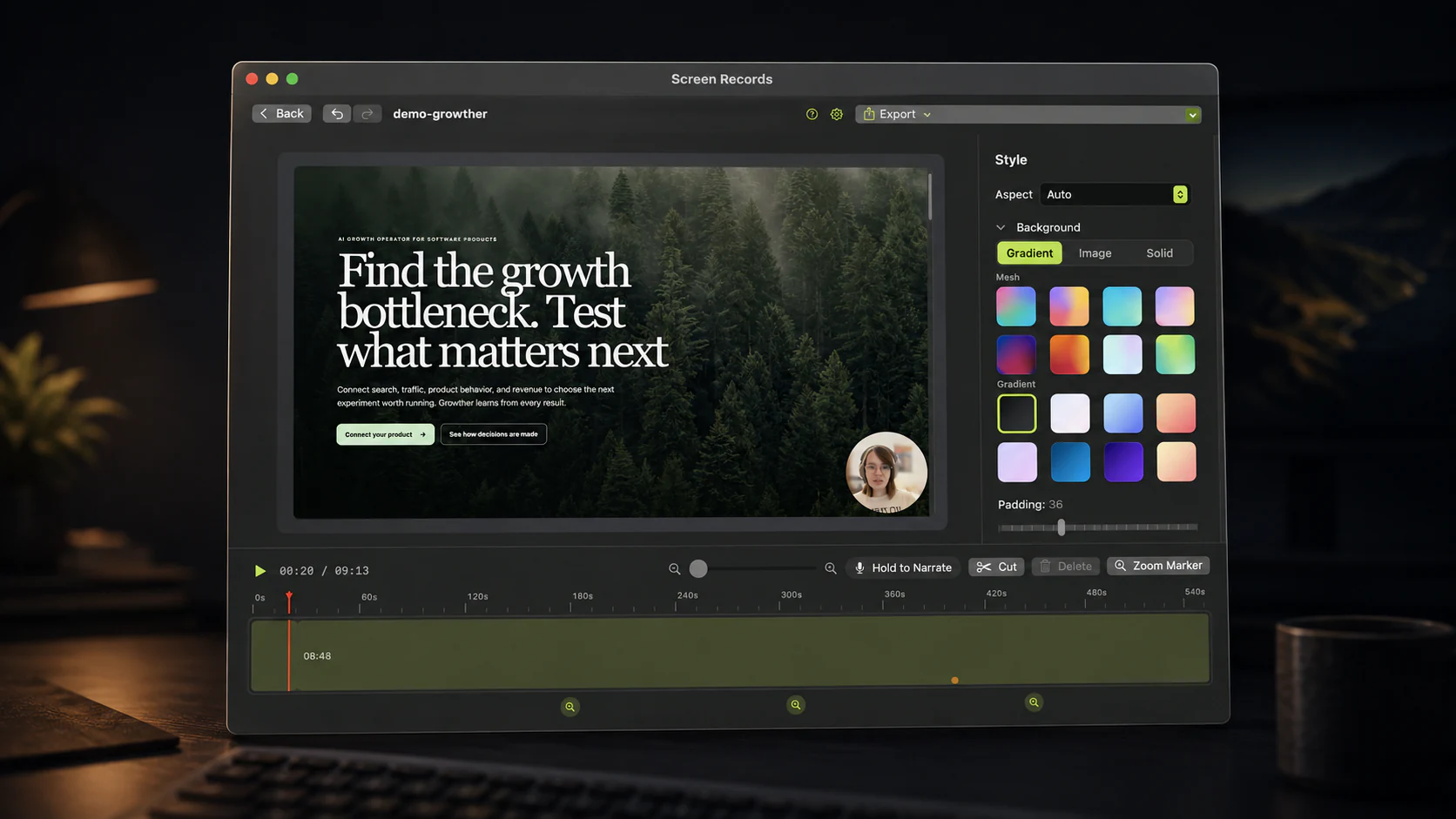
Cut the dead air. Split at the playhead, select the silence, delete. Do this before anything else. It is 25 to 40 percent of the runtime and it improves the video more than any other edit you will make.
Speed up the waiting. Installs, builds, downloads, uploads. Keep them in, because cutting them makes viewers think you skipped something, but run them at 4x or 8x while you keep talking.
Zoom on the small stuff. Every configuration field, error message and menu item the viewer needs to read gets a zoom marker. In as the click happens, out when you move on. Two or three a minute. Beyond that the video becomes hard to watch. Choosing the level matters more than choosing the count.
Patch audio with voiceover. A sentence that came out wrong gets re-recorded over the timeline. You keep the screen recording and replace the words, which takes fifteen seconds instead of redoing the section.
Write down timestamps as you cut. You will want them in a moment.
Chapters, thumbnail, description
Chapters. YouTube builds them from timestamps in your description, and the rules are
strict: the first one must be 0:00, you need at least three of them, and each chapter has to
run at least ten seconds. Chapters are the difference between someone bouncing off a
twelve-minute video and someone jumping to the part they need. Label them by what happens,
not by number.
Thumbnail. Two to four words of large text over a frame of the actual result. Read it at thumbnail size on your phone before you upload it. If you cannot read it there, nobody can.
Description. First two lines carry the summary and the link, because that is all that shows before "more". Then chapters, then the repo or downloads. Anything you say out loud as "link in the description" needs to genuinely be in the description.
Pinned comment. Put commands and code there. People copy from comments constantly, and it saves you answering the same question forty times.
Export settings
MP4, 1080p, 16:9. Upload 4K only if your topic is visual detail work, because it multiplies your export and upload time for something most viewers will never see on a phone.
If the tutorial works without pictures, export the audio on its own too. Some people will listen to it while commuting who would never have opened the video.
Publish weekly, not perfectly
The first ten tutorials teach you more than any amount of gear research. Keep the same intro structure, the same font sizes and the same export settings, so that setup stops being a decision and the only thing you spend energy on is the content.
Get the editing fast enough that you will actually do it. When cutting dead air takes two keystrokes and a zoom is one marker, a twelve-minute tutorial edits in half an hour and you publish. When it takes an hour of timeline wrestling, you skip the edit and the video suffers for it.
Screen Records records the region, keeps the audio tracks separate, and opens into an editor with split, speed, zoom and voiceover on the same timeline. Free to use with no account; free exports carry a small badge.
Share this post
Keep reading
- GuideTurn a presentation into a video the same dayRecord the deck, your voice and your camera in one pass, then cut the fumbles. A method for conference pre-records, async updates and investor decks.
- GuideHow to record a hackathon demo video in 20 minutesJudges watch the video, not the repo. A 20-minute routine to record your demo, cut it to the time limit, and get it on YouTube before submission closes.
- GuideThe 12-minute product demo recording checklistA repeatable setup for founder updates and SaaS demos: what to prepare, what to say, and what to cut before you send it.