What is a .screenrecs file?
It is a Screen Records project, not a video: a macOS package holding your raw capture and the edits made to it. What is inside and how to get an MP4 out.
A .screenrecs file is a Screen Records project. It is not a video, which is why double-clicking
one opens the editor instead of QuickTime, and why sending one to a colleague gets you a confused
reply.
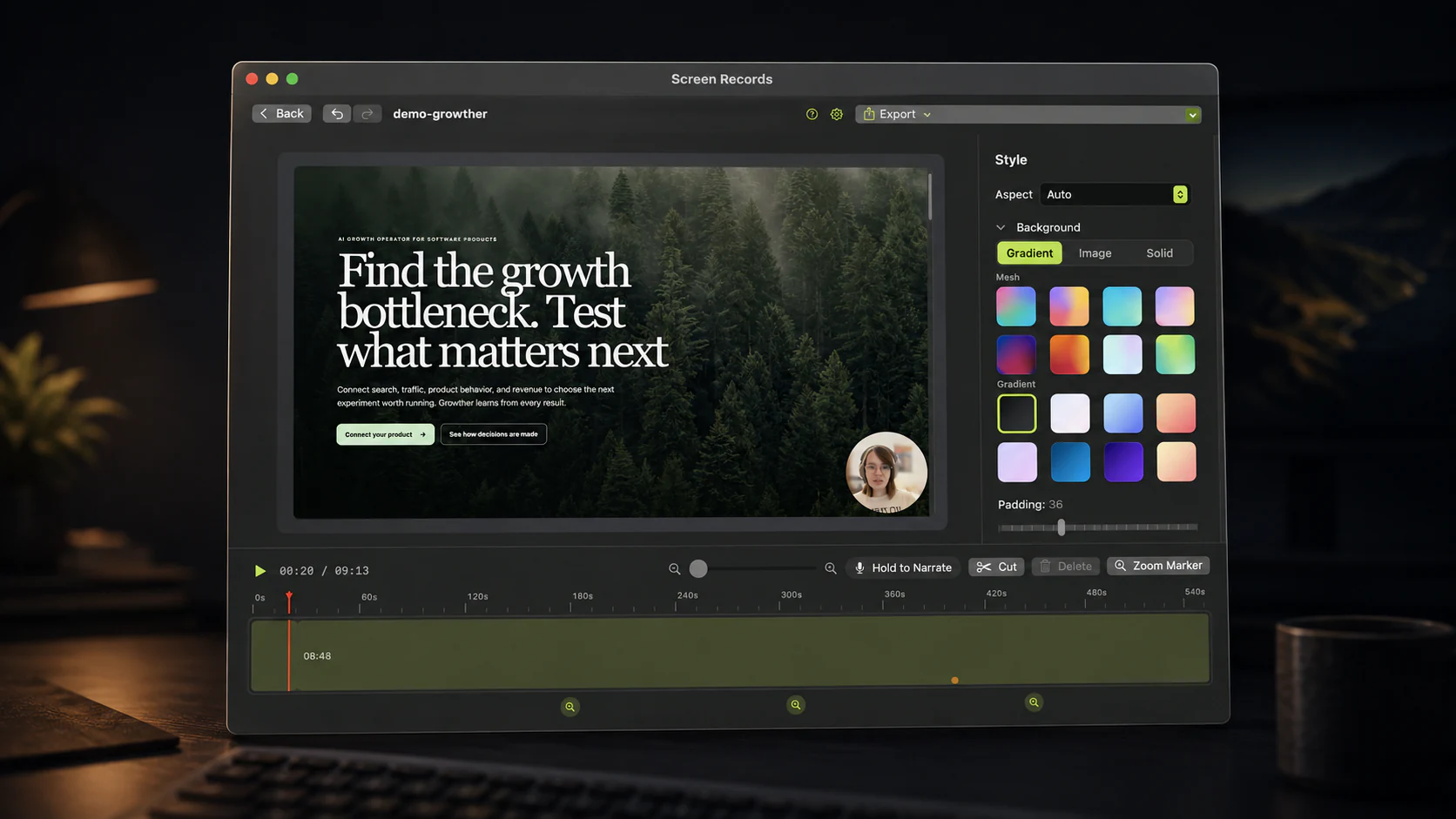
It is also not really a file. It is a folder that macOS displays as a single item, holding your raw recording plus a description of every edit you have made to it. The video you send to people is the MP4 you export out of it.
Here is what is inside, why it was built that way, and what to do when you want the plain video.
What the extension means
.screenrecs is the file extension Screen Records puts on its project packages. A package is a
normal macOS concept: an ordinary folder that the system has been told to treat as one object, so
Finder shows it with a single icon and opening it launches the owning app rather than showing you
its contents. Your .app bundles work the same way.
Screen Records claims the extension in its Info.plist under the type identifier
app.screenrecords.project, which is what makes projects open in the app on a double-click and
carry their own document icon.
New recordings land in ~/Movies/ScreenRecords/ unless you point the save folder somewhere else,
one package per recording, named after the project.
What is inside one
Right-click a project and choose Show Package Contents to see the real structure:
My demo.screenrecs/
├── manifest.json
├── media/
│   ├── screen.mov
│   ├── camera.mov
│   ├── microphone.m4a
│   └── voiceover-a1b2c3d4.m4a
├── backgrounds/
├── thumbnails/
├── transcripts/
└── exports/
media/ holds the raw capture, exactly as it came off the screen. The screen track is a .mov
written by ScreenCaptureKit, with system audio muxed into it when you recorded with sound on. The
camera is a second .mov, because it is a separate video that gets composited at export time
rather than burned into the capture. Microphone narration is its own .m4a, and each voiceover
you record in the editor adds another.
The screen track is the heavy one. If yours is larger than the length of the recording seems to justify, that has a short list of causes.
manifest.json is the project itself: a plain, pretty-printed JSON document holding the format
version, when the recording was made, which display or window or region it came from, the timeline
segments, your zoom markers, the background and aspect ratio settings, the voiceover positions and
a record of every export. Nothing in it is encrypted or compressed. You can open it in any text
editor and read your own edit history.
The rest are working folders. backgrounds/ keeps any custom background image you dropped in,
thumbnails/ holds the timeline preview cache, transcripts/ holds Whisper output as JSON and
text, and exports/ is where finished MP4 and audio-only files are written.
Why a folder and not one file
Because edits are non-destructive, and that has to be true on disk, not just in the UI.
When you cut a dead section out of a recording, Screen Records does not touch screen.mov. It
writes a timeline segment into manifest.json saying that seconds 0 to 14 and seconds 31 to 96 of
that asset are the parts that play. The original stays whole. A month later you can still recut
the same recording from footage you thought you had deleted, because nothing was ever removed.
Trimming a 2 GB capture costs a few hundred bytes of JSON instead of a second 2 GB file.
Keeping the capture and its instructions inside one package means the two cannot drift apart. Move the project to an external drive, rename it, drop it in a Dropbox folder: the media travels with the edit. Media paths in the manifest are stored relative to the package and validated against it on open, so a project that moved still knows where its own video is.
What to do with a project
Open it. Double-click, or use Open in the app. Screen Records also reopens the most recent valid project in your save folder after a crash, which is the reason recordings are written into the package while the capture is still running rather than assembled at the end.
Rename it. Rename the folder in Finder like any other item. The folder name is the project's identity: on open, the app adopts the name it finds on disk. That direction of trust matters when you have duplicated something.
Duplicate it. Finder's Duplicate gives you My demo copy.screenrecs, and it opens as a
separate project under that name. Useful for cutting a 30-second version out of a long recording
without losing the long one.
Back it up. It is a folder of standard files, so any tool that copies folders works. There is no database and no library index anywhere else on your Mac that needs to stay in sync with it.
Getting a normal video out
Export. The MP4 is the shareable artifact; the project is your working copy.
Exports are written into exports/ inside the package, so the video you just made is one
right-click away from the project it came from, and you can drag it out to wherever it needs to
go. Audio-only export produces an .m4a next to it. Send the MP4 to people, upload the MP4 to
YouTube, and keep the .screenrecs for the day someone asks for a different cut.
Nobody else can open a .screenrecs project, because the format belongs to this app. But the
media inside it is not exotic. If you ever need the raw capture without the app, open the package
and take screen.mov out. It plays in QuickTime.
When you can delete one
Once the exported video is somewhere safe and you are sure you will not recut it.
Projects are the largest thing Screen Records puts on your disk, by a wide margin. A raw screen capture is far bigger than the compressed MP4 you export from it, and every project holds one forever. If your recordings folder is getting heavy, this is where to look, and it is usually the honest answer to where the disk went: video, not applications. A cheap habit: keep the last month of projects, keep every export, delete the older packages once their MP4 is published.
Deleting a project deletes only that folder. There is no leftover state elsewhere on the machine,
and nothing in ~/Library grows because of it.
Send the MP4. Keep the package. Screen Records is free to use, no account needed, if you want to see what one looks like on your own disk.
Share this post
Keep reading
- GuideWhy do apps take up so much storage on macOS?Bundled browsers, universal binaries and Application Support leftovers. What actually fills your disk, how to measure it, and what is safe to delete.
- GuideHow to record a YouTube tutorial on your MacPick the query, make the screen readable, record in sections, and edit in four moves. Setup and export settings for screen tutorials people finish.
- Product updateIntroducing Screen Records 0.1.0Why we built a Mac screen recorder with an editor, what shipped in 0.1.0, and what a one-time license buys you.