Turn a presentation into a video the same day
Record the deck, your voice and your camera in one pass, then cut the fumbles. A method for conference pre-records, async updates and investor decks.
Record the talk, then fix the talk. Do not build a video out of slides.
That is the whole method, and it is the opposite of what most people try. The usual approach is to record slide 1, hate it, re-record slide 1, move to slide 2, and discover four hours later that the energy in slide 12 does not match the energy in slide 2 and the whole thing sounds stitched. One continuous pass plus twenty minutes of cutting beats it every time, and it finishes the same afternoon.
Here is the setup that makes the one pass work.
Get the deck out of presenter mode's way
This is where most presentation recordings go wrong before anyone speaks.
Keynote and PowerPoint take over the entire display when you start a slideshow. So you record the display, not a window. If you turn on presenter view with a second monitor, your notes land on one display and the slides on the other: record the display with the slides, check which one that is before you start, and put a plain white window on the other so nothing of yours leaks into a stray frame.
On a single laptop screen, turn presenter view off and put your notes on your phone or on paper. Reading from a phone below the camera looks like thinking. Reading from a notes pane you forgot to hide looks like a mistake.
Google Slides is friendlier: present into a window and record that window, and the capture region stays where you put it.
Two settings worth checking in the deck itself:
- Slide size 16:9. If the deck is 4:3, your video gets black pillars down both sides for its entire length.
- Turn off slide transitions that fly. Cube and page-curl transitions look fine in a room and terrible after video compression.
Sound, camera, and the timer
System audio on if any slide has embedded video or sound. This is the single most common missing piece in a recorded talk: the presenter plays the clip, the clip is silent in the export, and nobody notices until it is published. Screen Records keeps system audio on its own track next to your microphone, so you can drop the level under your voice instead of re-recording.
Getting that separate track in the first place is the part macOS makes awkward, and it is worth settling well before the day you record.
Camera small, in a corner, blurred behind. People sit through a talking head for twelve minutes far more happily than a disembodied voice over slides. Put the bubble bottom-right, make it a circle, and check it is not sitting on top of your slide numbers or your logo. You can resize and move it after the recording, so a bubble in the wrong place is a two-second fix rather than a re-shoot.
Set the duration before you record. If your conference slot is twelve minutes, record to twelve. Presenting to a hard stop is the only reliable way to find out that your section on methodology is four minutes long.
The one pass
Advance slides with the arrow keys. Every time you reach for the mouse, the pointer appears in frame and starts drifting while you talk, and that drift is the thing viewers notice without knowing why.
Open with the result, not the agenda. Nobody has ever been persuaded by an agenda slide.
When you fumble, stop, breathe, repeat the sentence, keep going. Do not go back to the top. You are going to cut it, and you know exactly where the fumble was because you just made it.
If a whole slide comes out badly, say "slide nine, take two" out loud and do the slide again. That sentence is trivially findable in the timeline later.
Twenty minutes of cutting
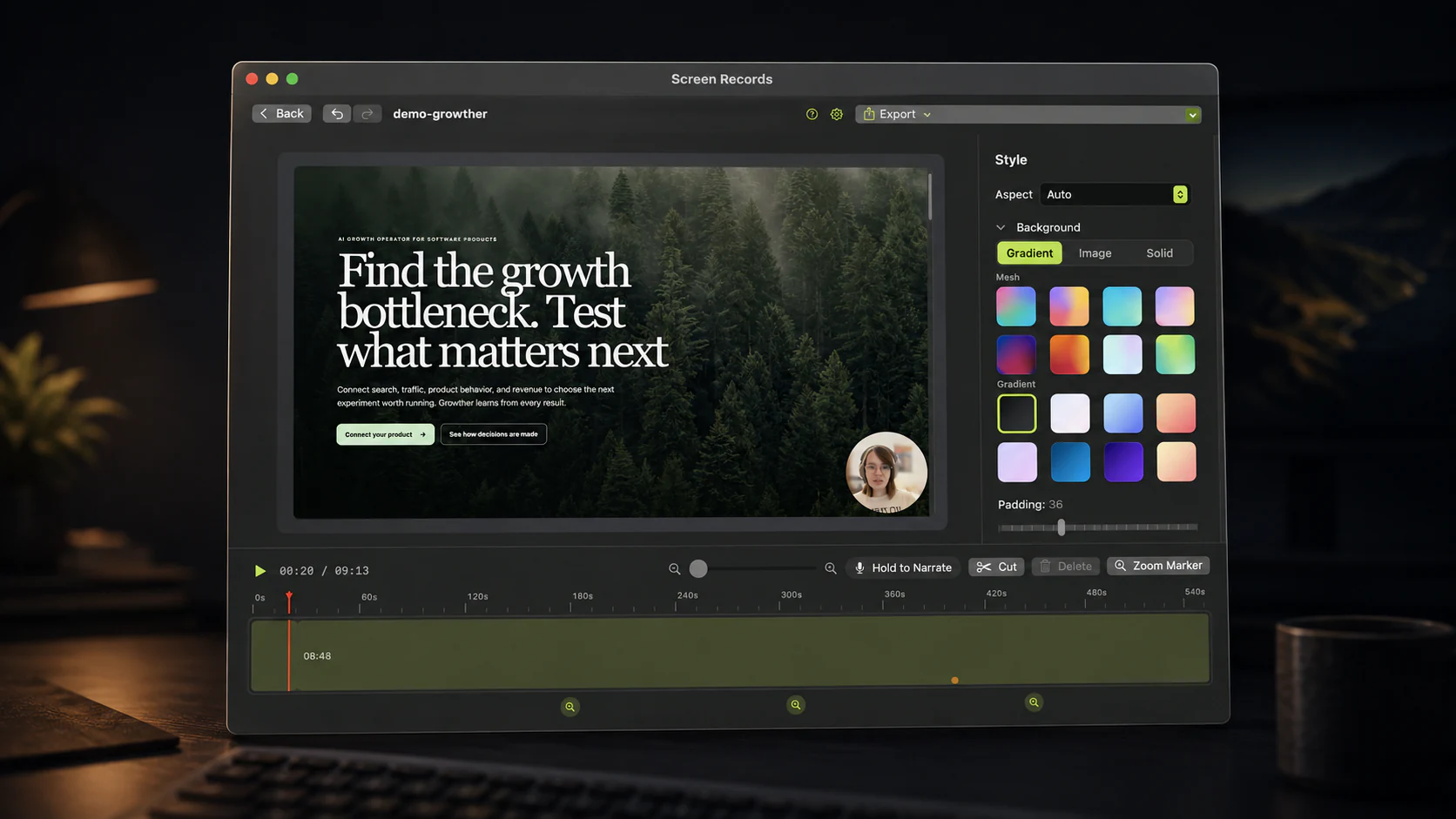
Gaps between slides go first. Every advance has a beat of silence on either side of it. Split at the playhead, select, delete. Cutting only those beats typically pulls a fifteen minute recording down to eleven, and eleven is a talk people finish.
One bad slide does not need a re-shoot. Keep the video, re-record the narration for that stretch as voiceover over the timeline, and drop the original audio underneath. Viewers forgive a rough cut. They do not forgive audio they have to strain at.
Zoom instead of redesigning. You have a dense chart on slide seven and no time to rebuild it. Drop a zoom marker on the part you are actually talking about and let the motion do the pointing. This is faster than fixing the slide and better than saying "I know this is a bit small."
How far to zoom and how long to hold it is a short read that will save you rebuilding a chart you did not have time to rebuild.
Speed up anything mechanical. A live demo inside the talk that takes forty seconds of loading goes at 4x with your voice continuing over it.
Export it twice
MP4, 1080p, 16:9 for the upload. That is what conference organisers ask for and what YouTube and LinkedIn both want.
Audio only for the people who will never press play. A twelve-minute talk exported as an audio file gets listened to on a commute by someone who would have skipped the video, and it costs you one extra export.
Where it goes depends on the audience. A conference pre-record gets sent as a file, and an internal update goes to Drive with the deck alongside it. Anything public goes to YouTube unlisted, with the first two lines of the description carrying the link people actually need.
If the talk is going public rather than to an organiser, the YouTube side is worth doing properly: chapters, and a thumbnail you can read at phone size.
The other way round: a video inside the slide
Sometimes the deck is the deliverable and you just need a clip in it. Same tools, smaller job.
Record a region around the interface, thirty to sixty seconds, no camera and no voice. Cut it tight, add one zoom on the moment that matters, and export MP4. In Keynote or PowerPoint, drag the file onto the slide and set it to start on click.
A silent thirty-second clip of the product working replaces four bullet points, and it keeps working when the wifi in the room does not.
What this actually costs you
Forty minutes for a twelve-minute talk, once you have done it twice. Most of that is the recording itself. The editing is short because the only moves are cut, voiceover, zoom, and speed, and they all live on the same timeline as the recording.
Try it on your next deck: free to use with the full editor and no account. Free exports carry a small badge in a corner.
Share this post
Keep reading
- GuideHow to record a hackathon demo video in 20 minutesJudges watch the video, not the repo. A 20-minute routine to record your demo, cut it to the time limit, and get it on YouTube before submission closes.
- GuideThe 12-minute product demo recording checklistA repeatable setup for founder updates and SaaS demos: what to prepare, what to say, and what to cut before you send it.
- ComparisonQuickTime screen recording: what it can and cannot doQuickTime is free and already installed. Here is exactly where it stops — system audio, zoom, trimming — and what to do about it.