Captions for your screen recordings, made on your Mac.
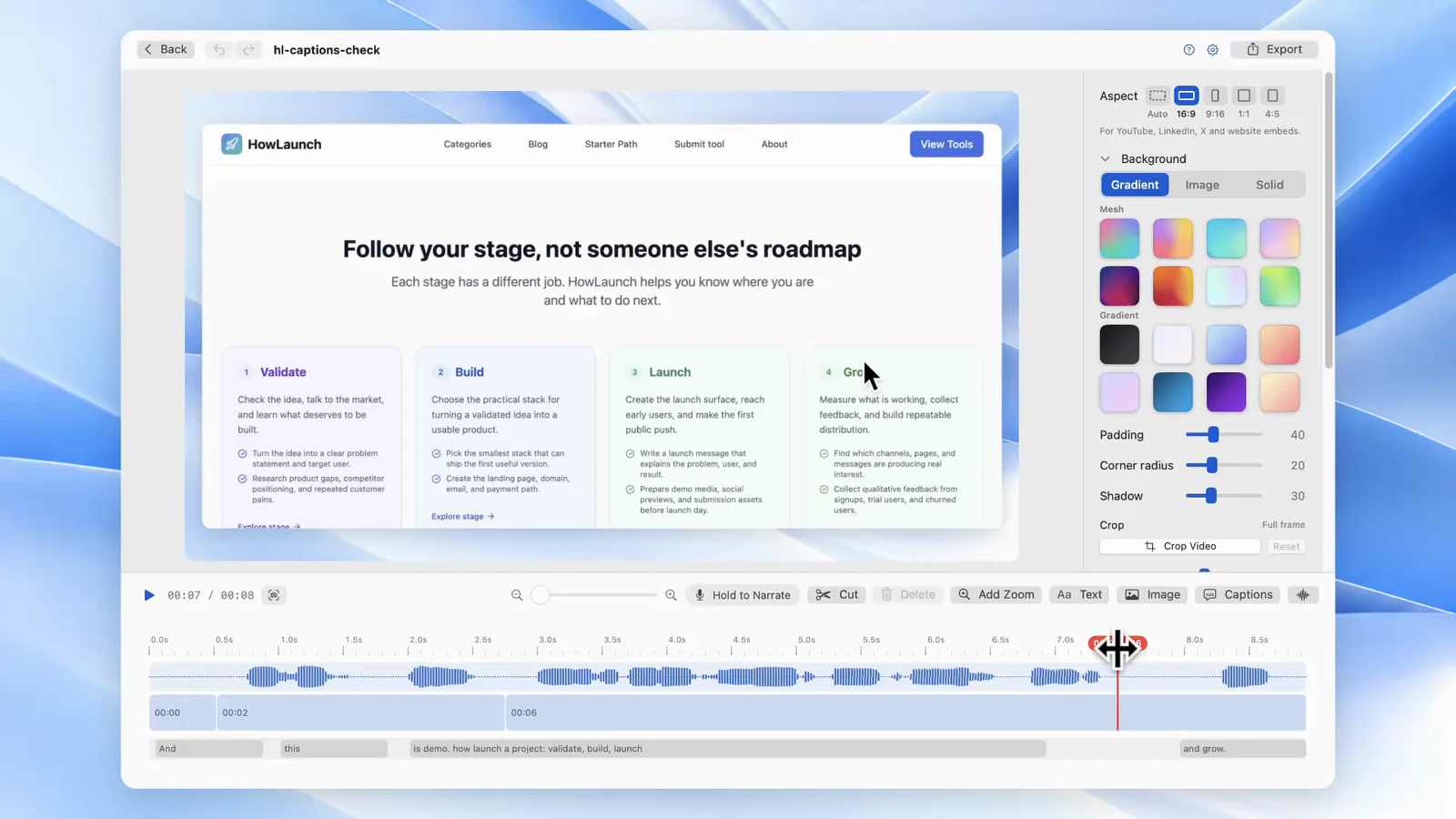
Click Captions and the transcript appears under the timeline a few seconds later. The speech model runs on your Mac, so no audio leaves it. Fix a misheard word by typing over it, pick a look, then burn the captions in or export an SRT.
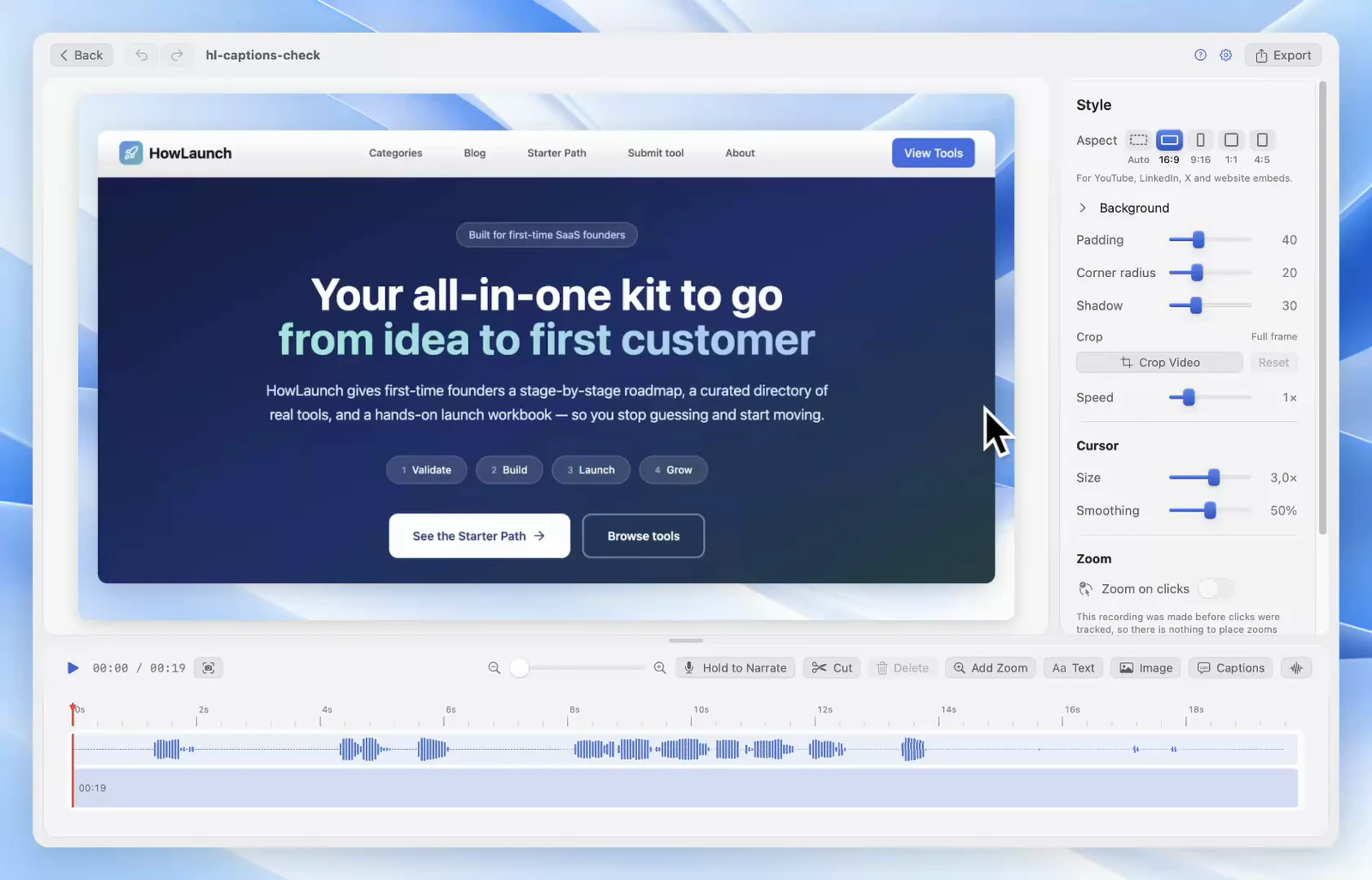
Transcribed offline, with Whisper.
Most caption tools send your audio to a server. Screen Records runs Whisper medium on your Mac instead, which matters when the recording shows a client dashboard or an unreleased feature.
01
One download, then offline
The 540 MB model downloads the first time you ask for captions, and it resumes if the connection drops. After that, captions work on a plane.
02
Any language it hears
The model detects the language from the audio. Narration you record later follows the language of the recording.
03
Your words, spelled right
Put product names and jargon in the vocabulary field. The model gets them before it listens, so a product name comes out spelled the way you write it.
04
Muted means uncaptioned
Mute a stretch of the recording and its words drop out of the captions. Narrate over it and the new words are captioned on their own.
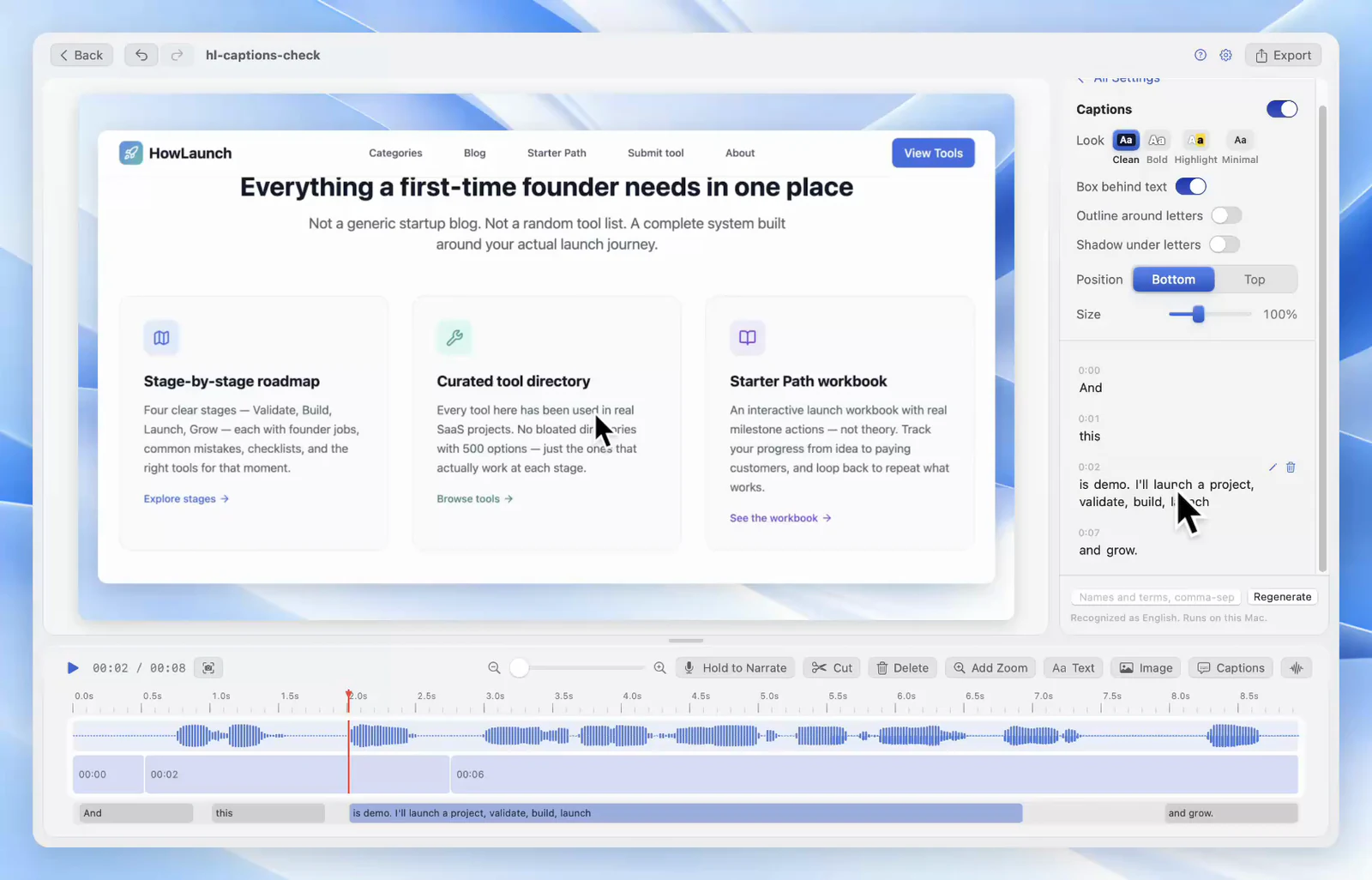
Fix a word by typing over it.
The transcript sits in the inspector and scrolls with playback. Click a word to jump there. Double-click a caption on the video and you are editing its text.
- Review the unsure words. Step through the words the model was least confident about, instead of rereading the whole thing.
- Cut by text. Select words in the transcript and cut them from the video. The audio and picture go with them.
- Or drop only the caption. Remove words from the captions and leave the audio playing.
Every edit is one undo step, and the recording itself is never changed.
Four caption styles, no template library.
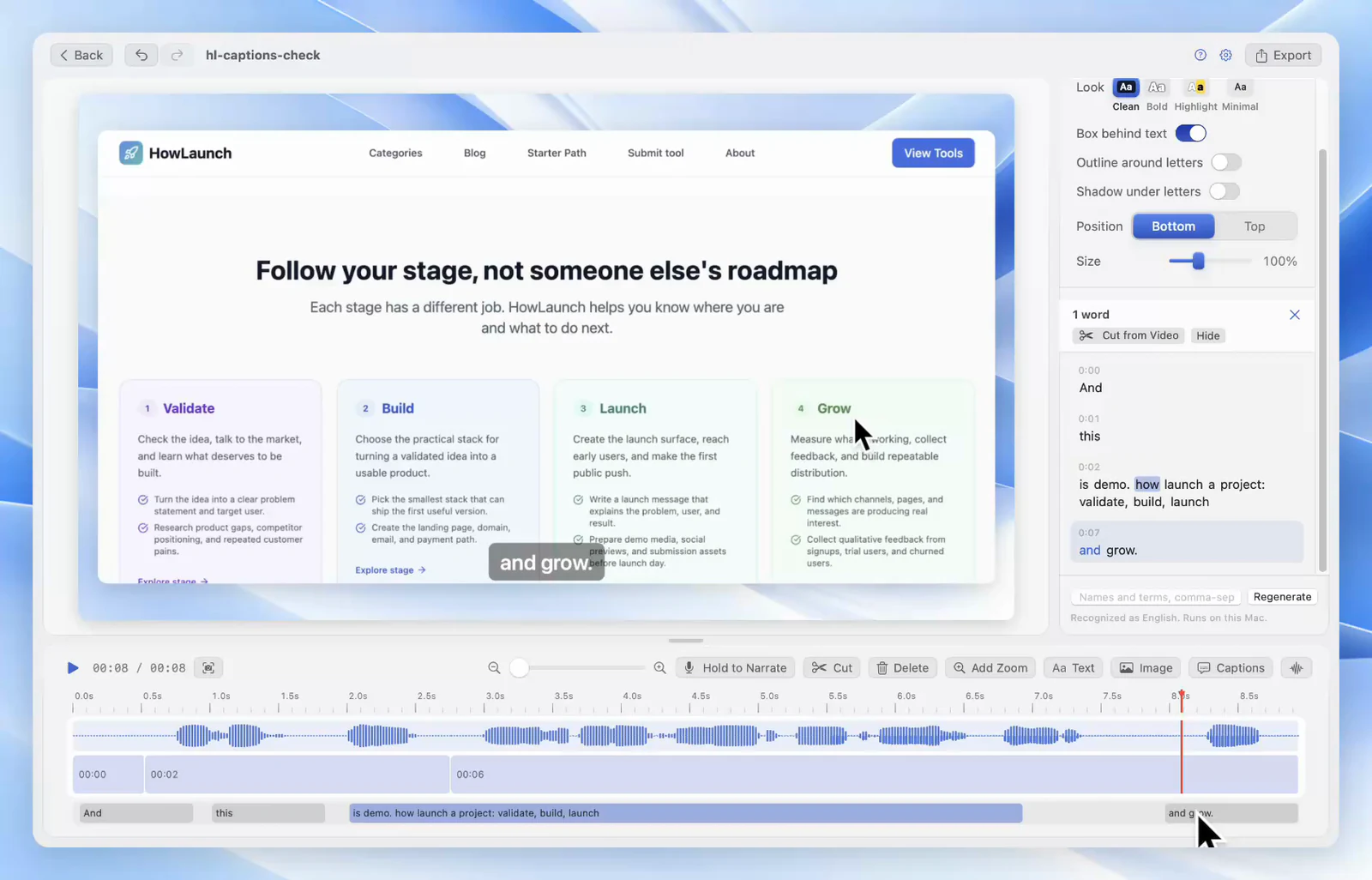
Each look is finished as it is. Switch the box, outline or shadow on or off by hand, and your choice sticks when you try another look.
Clean
White text on a translucent dark box. Readable over any background, so it is the default.
Bold
Heavy white text with a dark outline and no box. Made for social clips watched on mute.
Highlight
Bold text, with the word being spoken in a colored box. You pick the box and the word color.
Minimal
Smaller regular text with a soft shadow, for tutorials where the screen is the point.
Put captions at the top or bottom of the frame and scale them from 60% to 180%.
Burned in, SRT, WebVTT or text.
Pick the file the place you are posting expects.
Burned into the MP4
For X, LinkedIn, Reels and anywhere people watch with the sound off. The captions are part of the picture.
SRT
For YouTube, Vimeo and most video hosts. Viewers can switch captions off, and the text is indexed.
WebVTT
For the <track> element on your own site or docs page.
Plain text
The transcript alone, for release notes, a blog post or a summary prompt.
Trim silence in one pass.
Remove Pauses finds every silence in the recording and cuts them all at once. The captions close up behind the cuts, so there is nothing to resync.
- Set how long a pause has to be. Anything from half a second to 3 seconds, in quarter-second steps.
- See the result before you cut. It tells you how many pauses it found and how many seconds shorter the video gets.
- Keep the breath. A quarter second stays at each side of a cut, so your sentences don’t run into each other.
- Works without captions. It listens to the audio itself, and the whole pass is one undo step.
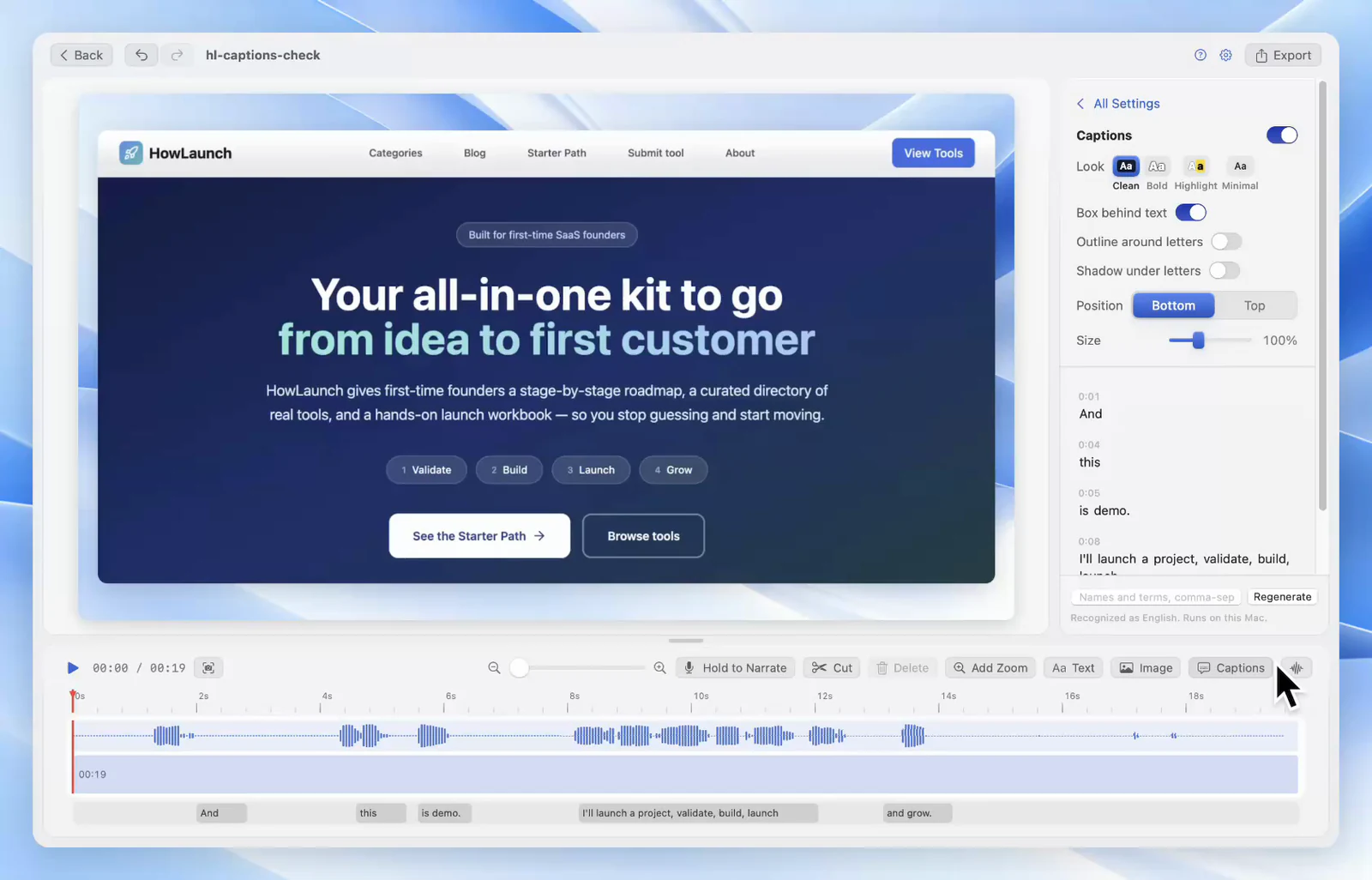
Captions follow the edit.
Captions live on the same timeline as your cuts. Split, delete or speed up a clip and the words stay under the right frames.
Said a sentence badly? Mute it and say it again with Hold to Narrate. If the video already has captions, the new take is transcribed as soon as you let go, and its caption takes the old one’s place. You don’t press Captions again.
See the rest of the editor on the editor page, or let an AI do the whole pass through MCP.
Captions FAQ
Is my audio uploaded to make captions?
No. Captions come from a Whisper speech model that runs on your Mac. The only download is the model itself, once, and after that captions work with the Wi-Fi off.
How big is the speech model?
About 540 MB. It is Whisper medium, quantized to a third of its full size with close to the same accuracy. It downloads the first time you ask for captions, lives in Application Support rather than inside the app, and can be removed from the export settings.
Which languages does it caption?
The model is multilingual and detects the language from the audio. Voiceover you add later is captioned in the same language as the recording.
Can I export captions as an SRT file?
Yes. Export them as SRT or WebVTT for YouTube, Vimeo or a web player, or as plain text for release notes and blog posts. You can also burn them into the MP4.
Can I keep the transcript but hide captions on the video?
Yes. Turn captions off and the transcript stays, so you can still edit it and export it as SRT, WebVTT or text.
The model keeps misspelling my product name. Can I fix that?
Add it to the vocabulary field under the captions panel and transcribe again. The terms go to the speech model, so it spells them the way you write them. For a one-off mistake, double-click the caption and retype the word.
Do captions follow my cuts?
Yes. Captions sit on the same timeline as the video. Cut a stretch, remove pauses or speed up a clip, and the captions move with it. Parts where you muted the audio are left uncaptioned, since the viewer hears nothing there.
What happens to captions when I re-record a sentence?
Mute the bad take and narrate over it with Hold to Narrate. When the video already has captions, the narration is transcribed automatically, so the muted words leave the captions and the new ones take their place. No need to generate captions again.
Can I remove the silences from my recording?
Yes. Remove Pauses cuts every silence longer than the length you set, from half a second to 3 seconds, and shows how much shorter the video gets before you confirm. It keeps a quarter second at each side of a cut, works without captions, and the captions close up behind it.
Can an AI assistant add captions for me?
Yes. Through the built-in MCP server, Claude, ChatGPT, Codex or Cursor can generate captions, correct words, change the style and export a subtitle file. Each change lands in the editor as one undo step.
Caption your next recording without uploading it.
Free to use, with the full editor and captions included.