Why your Mac screen recording is laggy, silent, or 4 GB
Six things that go wrong with Mac screen recordings, five of which have the same cause: where files save, why they stutter, and the one setting that fixes most of it.
Six things go wrong with Mac screen recordings, and five of them come from the same place: you are capturing far more pixels than you need. Here is each one, what actually causes it, and what to change before the next take.
Why is my Mac screen recording laggy?
Almost always because you are recording more pixels than the encoder can keep up with, not because your Mac is too slow.
Recording a 14-inch MacBook Pro's full display captures 3024 by 1964 pixels, roughly four times a 1080p frame, and macOS asks the encoder to compress every one of them 60 times a second while the rest of your machine keeps working. On an Apple Silicon Mac the media engine handles that in dedicated hardware and barely notices. Under real load, with a video call running, forty browser tabs open and an external display attached, frames start arriving late. Late frames are what you see as stutter on playback.
Three things fix it, in order of how much they help:
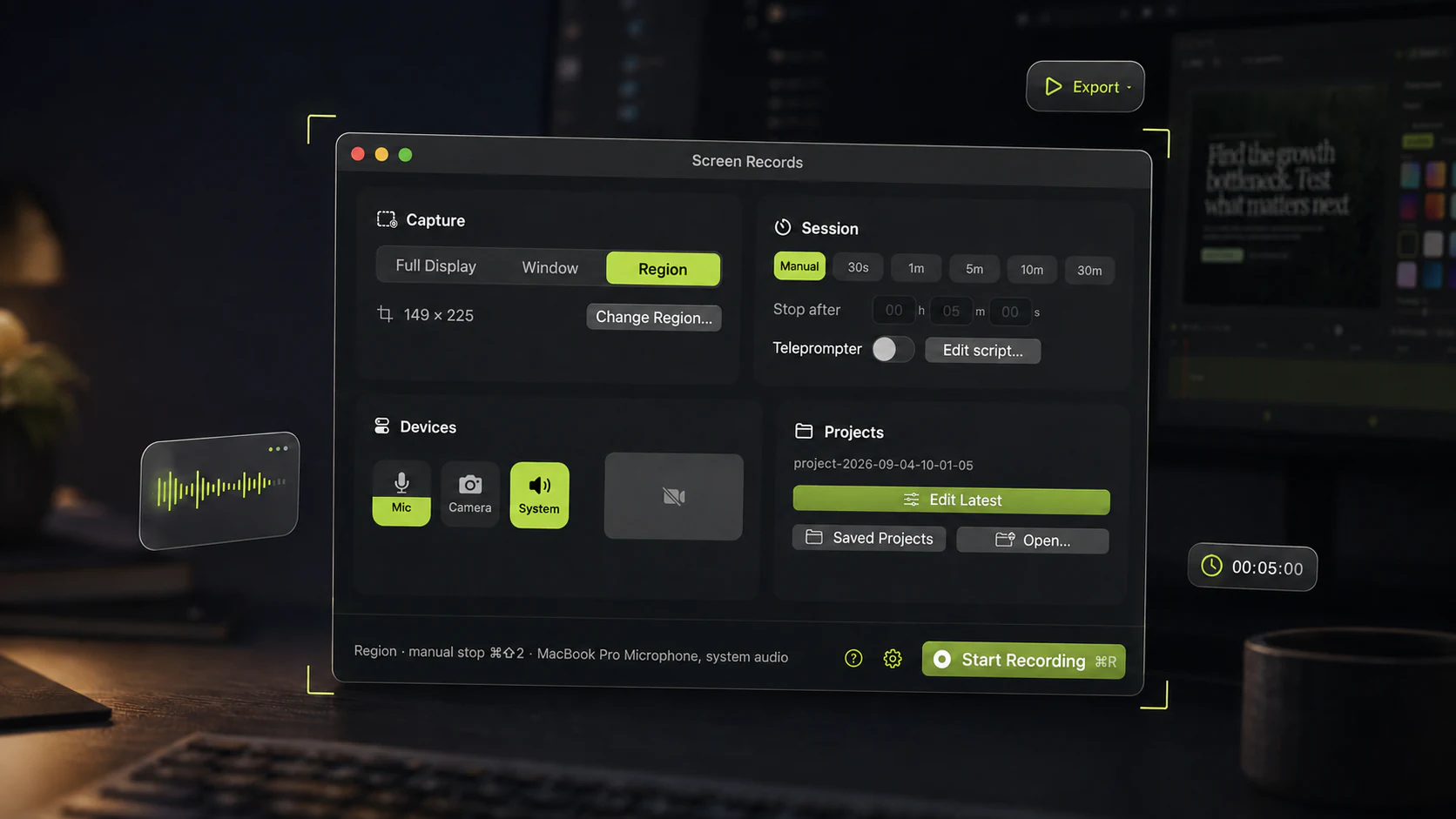
- Record a region or a window instead of the whole display. Capturing a 1280 by 720 slice of your screen is a fifth of the work of capturing the display it sits on. This is the single biggest win and it costs nothing.
- Quit what you are not demoing. Video calls and browser tabs playing media compete for the same encoder.
- Unplug the second display if you are not recording it.
If the stutter survives all three, play the file in QuickTime rather than in a browser. A recording that stutters in Chrome and plays cleanly in QuickTime was fine all along.
Why is my screen recording file so big?
Same cause as the lag: a full Retina display at 60 frames a second is an enormous amount of raw video, and screen content compresses badly.
Two minutes of full-screen Retina capture reaching a gigabyte is normal, not a bug. Video codecs work by describing what changed between frames, which is why a talking head compresses so well. Scrolling a page changes every pixel on screen at once, and text has hard edges the encoder cannot blur its way out of.
What actually shrinks the file:
- Record the region, again. A quarter of the pixels is roughly a quarter of the file.
- Scroll less. Two slow scrolls cost less than ten flicks, and they are easier to follow.
- Export at the size you publish at. A tutorial for a 1080p YouTube upload does not need a 3024-pixel-wide master, and exporting at the target size once beats re-encoding later.
- Cut before you export. Forty seconds of throat-clearing at the front of the take is forty seconds of file.
Long recordings are also where disk pressure starts, which is its own problem further down.
Where do screen recordings save on a Mac?
On the Desktop, unless you changed it. The ⇧⌘5 toolbar has a Save to menu under Options, and whatever you picked last time is where the next one goes.
That menu is the answer to most "my recording disappeared" searches. If you once chose Documents, or Mail, or Other Location, macOS quietly kept the setting. Open ⇧⌘5, click Options, and look at which entry is ticked.
Two more places to check. If you recorded through QuickTime and never saved the window,
macOS keeps the file in an autosave folder rather than throwing it away, at
~/Library/Containers/com.apple.QuickTimePlayerX/Data/Library/Autosave Information/. And if
you used a third-party recorder, it has its own location: Screen Records keeps each recording
inside its project, so nothing lands loose on the Desktop and nothing is lost by closing a
window. The project file explainer covers what is inside
one.
How long can you screen record on a Mac?
macOS puts no limit on it. Your free disk space does, and it runs out faster than people expect.
Take the file size above and do the arithmetic. If two minutes of full-display capture is a gigabyte, an hour-long recording wants around 30 GB free, and macOS gets unhappy well before the disk hits zero. Recording a region rather than a display moves that number by a factor of four or five.
For anything long, set a duration before you start instead of watching the clock. Screen Records takes a preset recording time, so a five-minute update stops itself at five minutes and you are not the one deciding when the take is over. If you are going to be interrupted, pause instead of stopping: paused time is never written to the file, so it costs nothing in disk space or in editing afterwards.
Why did my screen recording fail to save?
The usual reason is that the disk filled up during the recording, and the failure only shows at the end because the file is written as the recording stops.
It is a miserable way to lose forty minutes of work, and the fix is boring: check free space before a long take, not after. Then check the autosave folder above before you re-record, because a QuickTime recording that failed to save through the dialog is sometimes still sitting there.
The other causes are rarer. A recorder that loses Screen Recording permission mid-session produces a black or empty file. Sleep during a recording ends it. Recording to an external drive that disconnects does exactly what you would expect.
Why does my Mac screen recording have no sound?
Because the built-in recorders capture microphones only. They never record the sound your Mac is playing.
This catches everyone at least once. You record a demo with audio playing, the waveform looks right because your microphone picked up your speakers, and the result is thin and echoing. Or you record a call and get your own half of it against silence.
There are three ways out, and they are worth their own page: recording a Mac screen with system audio covers the free virtual-driver route, the built-in route, and recording narration separately.
The setting that fixes five of these
Record the region, not the display.
It cuts the lag, cuts the file size, cuts the disk pressure, makes the export faster and makes the video more readable, because a 1280-wide region of your screen is legible on a phone in a way a scaled-down 3024-pixel capture never is. It takes one extra drag before you start.
If you want the rest of the setup, the product demo checklist is the version we actually follow, and Screen Records is free to download if you want to test it on your own machine.
Share this post
Keep reading
- GuideHow to add zoom to a screen recordingWhen a zoom helps, the level and hold time that work, and how to place zooms after recording on a Mac, in Screen Records, iMovie or a pro editor.
- GuidePause a screen recording instead of editing it outThe door, the slow build, the notes you lost the thread of. Pausing keeps that time out of the file entirely, so there is nothing to cut afterwards.
- ComparisonFree screen recorders for Mac with no watermarkWhich Mac screen recorders are free with no watermark, which are trials or capped plans, and a 60-second test to run before you record a real take.