The best Mac screen recorders in 2026
An honest comparison of the Mac screen recording apps worth considering — what each is good at, what it costs, and when to pick which.
Every Mac already records its screen. The question is never whether you can. It is what happens in the twenty minutes after you stop, when the take has a fumbled sentence at 0:14, the important click is invisible at 1080p, and the file is too big to email.
That is the axis this comparison is built on: what each tool is genuinely good at, what it costs, and the situation where it is the right answer.
The short version
| Tool | Best for | Editing | Price model |
|---|---|---|---|
| Screen Records | Demos and tutorials, presentations | Full: cut, zoom, captions, voiceover, per-track edits, AI via MCP | One-time |
| QuickTime Player | A quick, silent screen grab | Trim only | Free, built in |
| macOS Screenshot toolbar (⇧⌘5) | The fastest possible capture | Trim only | Free, built in |
| Loom-style cloud tools | Sharing a link instantly with a team | Light, in-browser | Subscription |
| OBS Studio | Streaming, multi-source production | None (record only) | Free, open source |
| Final Cut / Premiere | Real film editing after the fact | Extensive | One-time / subscription |
Screen Records
Pick it when: the recording is going to someone else and it needs to be watchable.
Ours, so weigh accordingly. The design choice is specific: the recorder and the editor are the same window, because the twenty minutes after recording is where the work actually is.
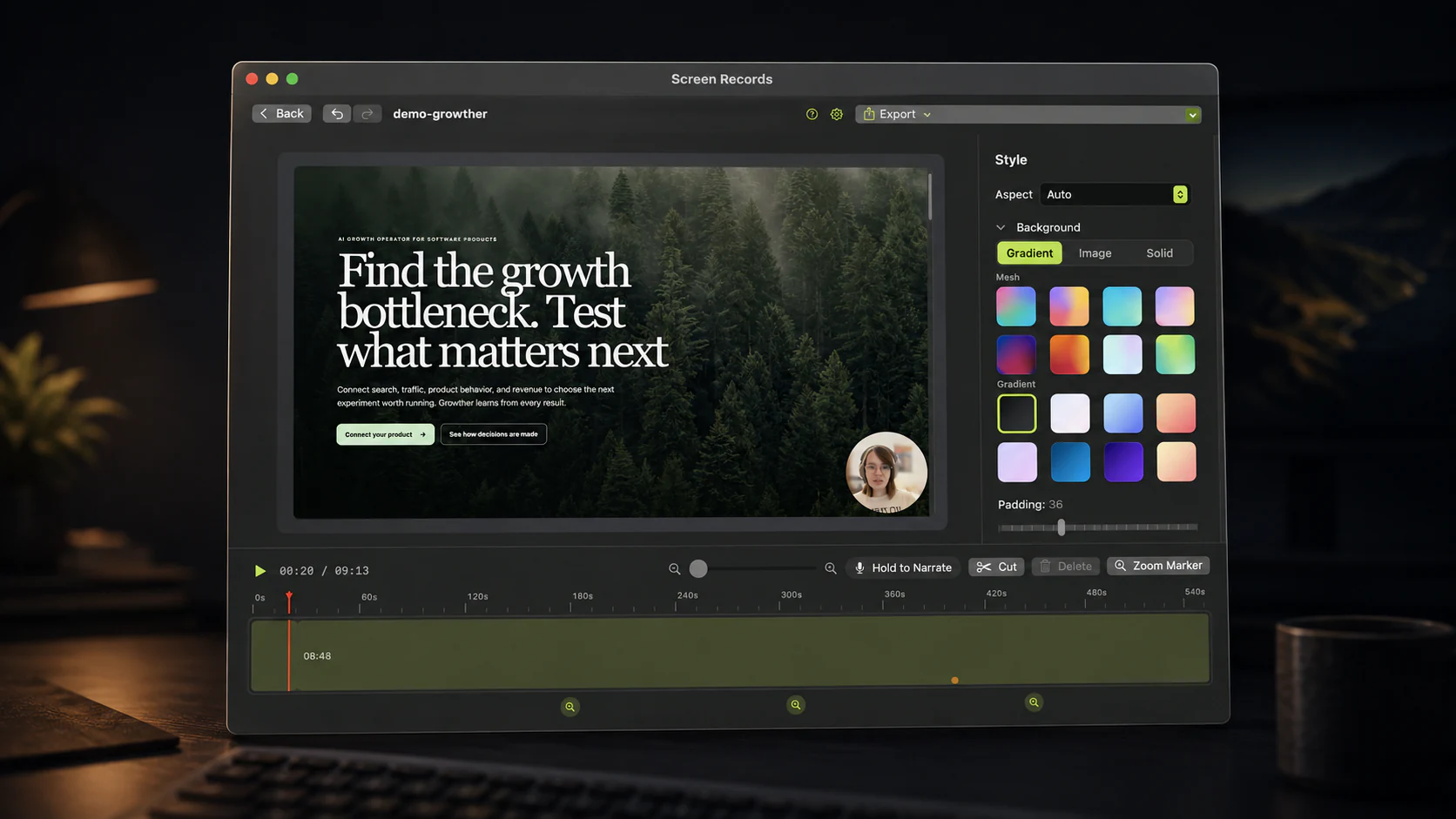
Concretely, screen, camera, microphone and system audio are recorded as separate tracks, so you can cut or mute the mic without touching the screen, or export one audio track on its own. The camera can be a bubble you shape and blur, or go full screen for stretches of the video: full screen for the intro, a small bubble while you demo, hidden while your inbox is open. Controls stay visible across every Space, so a full-screen demo does not lose them.
In the editor you get zoom markers with a depth setting, hold-to-narrate voiceover recorded over the timeline, and Remove Pauses, which cuts every silence in one step. Captions are transcribed on your Mac by a Whisper model, with no audio uploaded, and you fix a misheard word by typing. Burn them into the video or export SRT, WebVTT or text.
There is also a built-in MCP server. Claude, ChatGPT, Codex or Cursor can open a project, cut the pauses, add zooms and captions, switch the camera layout and export, with every change landing in the editor as one undo step. Export an MP4, a GIF or audio only. Recordings stay on your Mac.
It is free to use with no account and the full editor, with a small badge on free exports, so you can find out whether that is worth $29 without asking us. What it is not: a streaming tool, a multi-camera studio, or a team video library.
QuickTime Player
Pick it when: you need a plain capture of a window, right now, and nobody will watch it twice.
QuickTime is on every Mac and takes about four seconds to start a recording. It writes a
clean .mov, and it will trim the start and end.
Where it stops is sharp. It cannot record what your Mac is playing, because system audio requires installing a virtual audio device. It has no cut-in-the-middle, so a mistake at 0:14 means recording the whole thing again. And the files are large, because QuickTime is not optimising for something you will email.
We wrote a longer breakdown in QuickTime screen recording: what it can and cannot do.
The macOS screenshot toolbar (⇧⌘5)
Pick it when: you want the shortest path from thought to file.
Same engine as QuickTime, fewer clicks, and it can record a region. Same limits: no system audio, no editing beyond a trim.
For a bug report you are pasting into Slack, this is genuinely the correct tool. Do not install anything.
Loom-style cloud recorders
Pick it when: the value is the link, not the file.
Cloud tools are strong at exactly one thing local apps cannot match. You stop recording and a shareable URL exists, with viewer analytics and comments attached. For async standups and support replies, that is the whole product.
The trade-offs are structural. Recordings live on their servers, which is a real consideration when your screen shows customer data. Editing is lighter than a desktop app. And it is a subscription, so if you stop paying, the editor and often the back catalogue go with it. Full comparison: Screen Records vs Loom.
OBS Studio
Pick it when: you are streaming, or compositing several sources live.
OBS is free, open source, and more capable at live production than anything on this list. Scenes, multiple inputs, filters, streaming to any service.
It is also a control surface rather than a document editor. There is no timeline: OBS records, and you edit somewhere else. For a five-minute tutorial, the setup cost is larger than the recording.
Final Cut Pro / Premiere / DaVinci Resolve
Pick it when: the recording is raw material for something bigger.
If you are producing a course with music, motion graphics and colour work, a real NLE is the answer and no screen recorder replaces it. Resolve's free tier is remarkable.
For a product demo, this is a lot of software to open to delete four seconds of silence.
How to choose in one question
Who watches this, and how many times?
- Nobody, or once, internally → ⇧⌘5. Do not overthink it.
- A teammate, in the next hour → a cloud tool, for the link.
- Customers, prospects, or students, repeatedly → a recorder with a real editor. The polish is the point, and it has to be fast enough that you actually do it every week.
- It is footage for a produced video → record it however you like, edit in an NLE.
A note on the comparisons above
Prices and features move. Everything here reflects what these tools did as of August 2026, checked against their own documentation. If something is wrong or out of date, tell us and we will fix it. An inaccurate comparison is worse than none.
Share this post
Keep reading
- ComparisonScreen Records vs LoomA local one-time-purchase Mac recorder against a cloud subscription tool: where each one wins, and which fits your workflow.
- ComparisonFree screen recorders for Mac with no watermarkWhich Mac screen recorders are free with no watermark, which are trials or capped plans, and a 60-second test to run before you record a real take.
- Product updateI let Claude Code edit my screen recordingOne prompt, 48 seconds: a 36-second raw take came back cut to 17, with captions, zooms and a lighter background. What it did and what it sent to the AI.