Screen Records vs Screen Studio
Screen Studio 4.0 against Screen Records 0.1.5: automatic polish and share links on a subscription, or local editing, AI-assistant edits over MCP and a one-time license.
Updated October 8, 2026
Screen Records and Screen Studio are both native Mac apps for turning a screen capture into a polished video. Since Screen Studio 4.0 they overlap more than they used to: both caption on your Mac, both let you place your own zooms and arrange the camera, both export GIFs. What still separates them is where the video goes after you stop, how you pay, and who does the editing.
Everything below about Screen Studio was read off its own website on October 7, 2026, after the 4.0 release. Everything about Screen Records describes version 0.1.5, released September 24, 2026. Both apps ship often, so check their current pages before you buy.
The short version
Choose Screen Studio if your team needs a share link the moment recording stops, with comments pinned to the exact second, or if you want the app to treat the footage for you: zoom toward your clicks, a smoothed cursor, motion blur, noise reduction. It is a subscription, $29/month billed monthly or $9/month billed annually.
Choose Screen Records if recordings should never leave your Mac, if you would rather pay once, or if you want an AI assistant to do the editing pass. Its built-in MCP server lets Claude, ChatGPT, Codex or Cursor cut, zoom, caption and export the open project from one prompt. It is $29 once for one Mac or $49 once for three at the current launch price, with no renewal, and free to use before that with a small badge on exports.
One month of Screen Studio on the monthly plan costs the same as owning Screen Records outright.
What changed this autumn
Screen Studio 4.0 added editing by transcript (delete a sentence to cut it, with filler words and long pauses found for you), split-screen and full-screen camera layouts, a camera background cutout, face tracking, a camera that steps aside when you stop talking, video import, masking for API keys and email addresses, and an AI voiceover typed from a script.
Screen Records added these across 0.1.4 and 0.1.5 in September:
- Captions from a Whisper model that runs on your Mac, in 4 styles, burned in or exported as SRT, WebVTT or plain text. Details are on the captions page.
- Remove Pauses, which cuts every silence longer than a length you pick in one pass.
- Text and image layers over the recording.
- Camera layouts per stretch of the timeline: full screen for the intro, a bubble for the demo, hidden for the part where your face adds nothing.
- Each track edited on its own: screen, camera, microphone and voiceover, including muting a stretch of audio without cutting the video.
- GIF export, a quality choice, and an estimate of export time and file size before you export.
- An MCP server for AI assistants, covered below.
An older comparison that called Screen Studio "automatic" and Screen Records "manual" no longer holds. Here is what does.
Where Screen Studio is the better fit
- Automatic visual treatment. It zooms toward where you clicked, smooths the cursor, adds motion blur and click effects, and can show the keys you press. Screen Records has eased zoom markers with a depth choice, but you place every one, and it leaves the cursor as recorded.
- Share links with comments. A browser link at 1080p and 60 fps for videos up to 30 minutes, with comments on the exact second and optional view counts. Screen Records exports a file and you share it yourself.
- Cutting by transcript in the app. Delete a sentence from the text and it leaves the video. In Screen Records you fix caption words by typing, but cuts happen on the timeline unless an AI assistant makes them for you over MCP.
- Voice cleanup. Noise reduction and a podcast voice mode, processed on the Mac. Screen Records keeps the microphone as recorded.
- iPhone and iPad recording over a USB cable.
- Camera cutout and face tracking. Screen Records blurs the background behind you and offers bubble shapes, but does not remove the background or follow your face.
If you want the most polished result from the fewest decisions, or your recordings go straight into Slack or a ticket, Screen Studio is the better buy and the price difference will not matter much to you.
Where Screen Records is the better fit
An AI assistant can do the edit
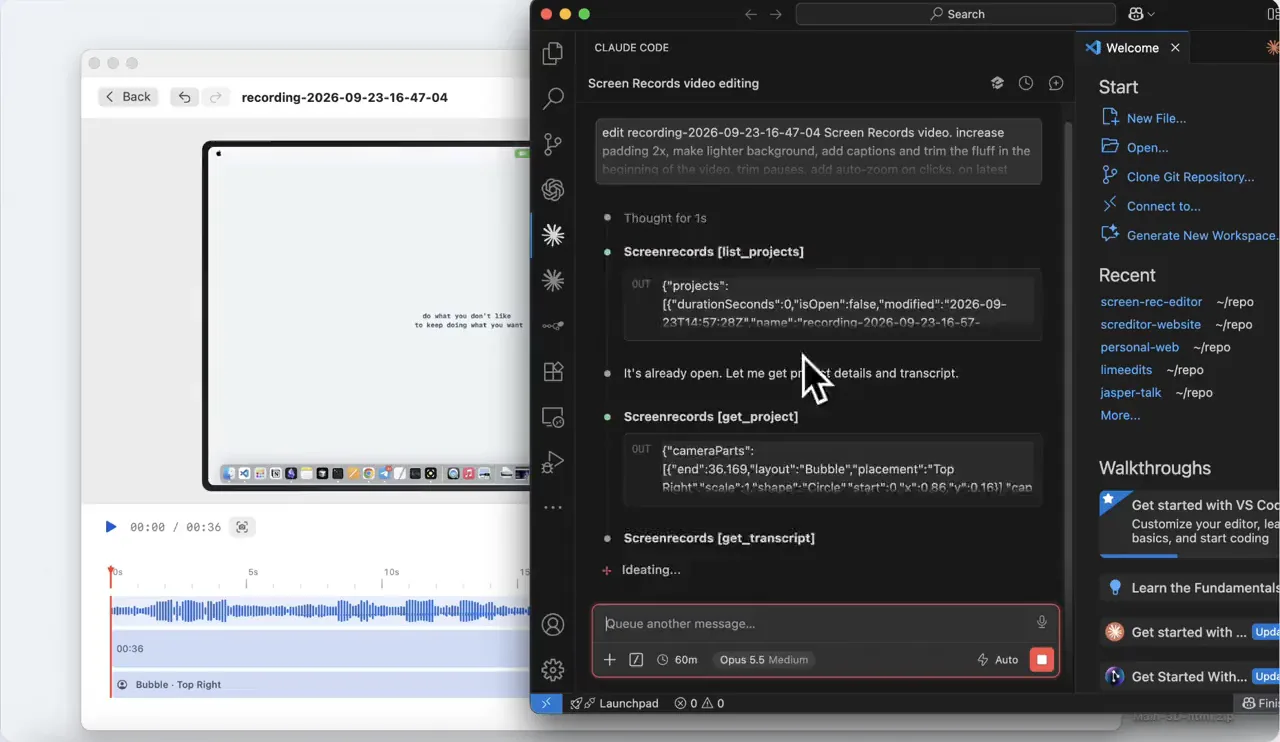
Screen Records runs an MCP server inside the app. Connect Claude Code or Claude Desktop, ChatGPT or Codex, or Cursor, and the assistant can open a project, read the transcript, look at frames, cut the false start and the pauses, place zooms, add captions and export. You watch it happen in the editor and undo anything you disagree with. Screen Studio's site lists nothing similar. The setup is on the MCP page.
Recording screens that should stay private
Customer accounts, admin panels, internal dashboards, an unreleased product. Screen Records never uploads a recording. Projects live in a folder you choose, captions come from a model on your Mac, and there is no share-link feature, so a file leaves your Mac only when you move it.
Screen Studio processes most things locally too, and says so plainly. Its share links, shared projects, cloud transcription and AI voiceover do upload. That is fine when you use them on purpose, and a policy question when someone on the team uses them by habit.
Fixing a sentence in your own voice
Mute the stretch where you misspoke and hold to narrate the sentence again over the same footage. If the video has captions, the new take is transcribed when you let go and its words replace the old ones. Screen Studio's version of this is a typed AI voice. Screen Records keeps yours.
Paying once instead of every month
$29 buys a Screen Records license for one Mac at the current launch price, and it keeps working without a renewal. The same $29 buys one month of Screen Studio on its monthly plan. Its annual plan comes to $108 every year, and without an active plan you can still edit but cannot export video files. Screen Records' price rises in steps as more licenses sell, and the full ladder is on the pricing page.
Social videos where you choose the emphasis
For a Reel, a TikTok or a Short, you usually want the zoom on the thing you are talking about, not on the last place you clicked. Put the camera full screen for the hook, shrink it to a bubble for the demo, place the zoom where your point is, burn in bold captions for people watching on mute, and export vertical or square.
Pricing and platform, checked fairly
| Screen Records | Screen Studio | |
|---|---|---|
| Payment model | One-time license | Subscription |
| Published starting price | $29 for one Mac (launch price) | $9/month billed annually ($108/year) |
| Mac allowance | 1 Mac, or 3 Macs for $49 | 3 personal Macs |
| Free use | Everything except AI editing; video and GIF exports carry a small corner badge | All features except video-file export without an active plan |
| Uploads | None; there are no cloud features | Optional: share links, shared projects, cloud transcription, AI voiceover |
| Editing by an AI assistant (MCP) | Claude, ChatGPT, Codex, Cursor | Not listed |
| macOS requirement | macOS 14+; Apple Silicon and Intel | macOS 13.1+; built for Apple silicon |
| Version compared | 0.1.5 | 4.0 |
The table leaves out a feature checklist on purpose. Both apps record the screen, camera, microphone and system audio, caption on the Mac and export vertical video, and a yes/no count hides the difference between automatic treatment and choosing every edit yourself.
What to try before deciding
Record the same two-minute demo in both apps. Make a small mistake in the middle, change one spoken sentence after the fact, add captions, and export it for the place you will actually publish it. That will tell you more than any table.
Screen Records is free to use with the editor, and exports carry a small badge until you buy. Screen Studio lets you use everything except export without a plan. Keep the one that removes more work from your kind of recording.
Share this comparison
Keep reading
- ComparisonThe best Mac screen recorders in 2026An honest comparison of the Mac screen recording apps worth considering — what each is good at, what it costs, and when to pick which.
- ComparisonScreen Records vs LoomA local one-time-purchase Mac recorder against a cloud subscription tool: where each one wins, and which fits your workflow.
- Product updateI let Claude Code edit my screen recordingOne prompt, 48 seconds: a 36-second raw take came back cut to 17, with captions, zooms and a lighter background. What it did and what it sent to the AI.