Free screen recorders for Mac with no watermark
Which Mac screen recorders are free with no watermark, which are trials or capped plans, and a 60-second test to run before you record a real take.
Updated October 8, 2026
Three screen recorders are free on a Mac with no watermark and no time limit: QuickTime (or the ⇧⌘5 toolbar), OBS Studio, and Cap for personal use. Everything else that calls itself free is a trial, a capped plan, or a watermark you pay to remove.
That is not a complaint. A watermark is how a paid app lets you test the whole product without giving it away. The problem is finding out after a 20-minute take, when the logo is already burned into the corner of the only good version.
So here is what each option really gives you for $0, checked against their own pages on September 15, 2026.
The short version
| Tool | Watermark | The catch |
|---|---|---|
| Screen Records | A small corner badge | Free with no time limit; a one-time license removes the badge |
| QuickTime / ⇧⌘5 | None | No system audio, trim-only editing |
| OBS Studio | None | Setup effort, no editor |
| Cap | None | Free for personal use only; shared links capped at 5 minutes |
| Loom Starter | None on the video | 5-minute recordings, 25 videos, Loom branding on the share page |
| ScreenFlow trial | Yes, on every export | No time limit, but exports carry a watermark until you buy |
| Camtasia free tier | Yes, on every export | The editor is complete; the watermark goes when you subscribe |
| Movavi free plan | Yes | Listed as a drawback of the free plan on Movavi's own page |
| Icecream free version | Yes | "No watermark" and "no time limit" are both things you buy |
Screen Records
Free with no time limit, a small badge on exports, $29 once to remove it. Ours, so read this section with that in mind.
By the definition at the top of this page, Screen Records is in the watermark group, and we would rather say so here than let you find out at export. Free videos and GIFs carry a small screenrecords.app badge in a bottom corner. It moves to the other corner when your camera bubble sits there, so it never covers your face, and it shows in the editor's preview, so the first time you see it is not in the finished file.
Everything else is the whole app: system audio on its own track, the camera bubble with background blur, the editor with cuts, zooms, captions and voiceover, and MP4 or GIF export at full quality. No account, no email address, and no limit on how many recordings you make.
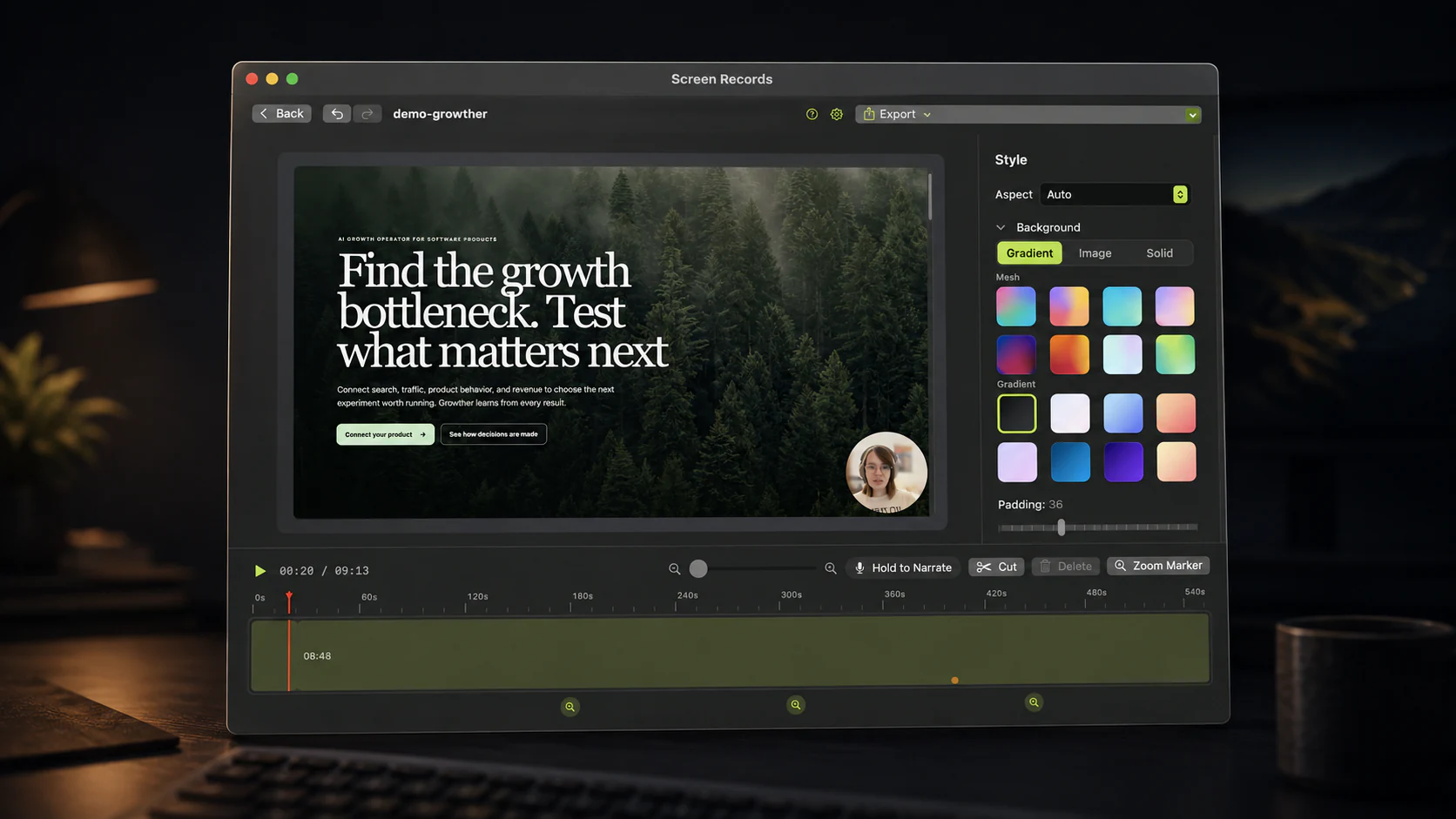
A license removes the badge from every export, including projects you made before buying: the badge is added when the file is written and never saved into the project. It also turns on AI editing through MCP, and it covers every future update, with no subscription behind it.
QuickTime Player and ⇧⌘5
Free forever, already installed. Press ⇧⌘5, choose the whole screen or a region, and
click Record. The file lands on your desktop as a .mov with nothing added to it.
Two walls. It records your microphone but not the sound your Mac plays, so a demo with app audio comes out silent. And editing is a trim: you can shorten the start and the end, never the middle. One wrong word at 0:40 means recording the whole thing again.
For a bug report or a quick clip for a teammate, stop here. We wrote up the rest of QuickTime's limits if you want to know exactly where it stops.
OBS Studio
Free, open source, unlimited. OBS records as long as your disk holds out and never touches the output.
On macOS 13 and later it can capture system audio through Apple's own capture API, so you no longer need a virtual audio driver. You add a macOS Screen Capture source and tick Capture Audio.
The cost is time. OBS is built for streaming and live production: scenes, sources and encoder settings before you record anything. There is no timeline either, so every cut happens in a second app. For weekly tutorials that is two tools and an export in between.
Cap
Free for personal use, no watermark. Cap is an open-source recorder for Mac and Windows. Its pricing page lists unlimited local recordings and its full editor on the free plan.
Read the terms before you use it for work: commercial use needs a paid plan, and free shareable cloud links stop at 5 minutes each. If you are recording for a client, the product you sell, or your employer, you are in paid territory.
Loom Starter
Free with a cap, and the watermark question is different. Loom does not stamp a logo into the frame. It hosts the video, and the free Starter plan keeps Loom branding on the page viewers watch it from.
The limits are the bigger deal: 5-minute recordings and 25 videos per person. Loom's pricing page lists trimming, stitching and video downloads under the paid Business plan. So on the free tier you get a link rather than a file. If you need an MP4 for YouTube or a course platform, check that first. Our Loom comparison covers the rest.
Paid apps with a watermarked trial
ScreenFlow is the common example. Telestream describes its demo as fully functional with no time limit, and every exported movie is watermarked until you buy a license, currently $199. That is a fair way to trial a professional editor. It is not a free recorder, and it is worth knowing before you record something you plan to publish.
The same pattern shows up across many paid Mac recorders. The app looks free while you record and edit, and the watermark only appears in the exported file.
The downloads that call themselves free
These are the ones that make people search for "no watermark" in the first place. All three say so on their own pages, if you read as far as the upgrade table.
Camtasia. TechSmith offers a free tier with the full editor. Exports carry a watermark until you move to one of the paid plans.
Movavi Screen Recorder. Its own Mac page lists the watermark on the free plan as a drawback of using it. The paid version removes it.
Icecream Screen Recorder. Its upgrade page sells "no watermark" and "no recording time limit" as PRO features, which tells you what the free version has. Commercial use is on the paid side too, so a recording for work is not covered by the free version even if you can live with the mark.
The pattern is worth recognising in general. If an app is free and has a paid tier, look at what the paid tier advertises: whatever it promises to remove is what the free version does to your video.
How to check any recorder in 60 seconds
Before you trust a new app with a real take:
- Record 10 seconds of anything.
- Make one edit, even a trim, so the test goes through the same export path a real video will.
- Export at the resolution you plan to publish.
- Open the file in QuickTime and look at all four corners, full screen.
If it is clean, check two more things on the pricing page: whether "free" means personal use only, and whether there is a limit on recording length. Those are the two catches that do not show up in a test export.
Which one to pick
- Anything with sound from your Mac, cuts in the middle, and a file you publish: try Screen Records. The free version shows you whether the editor saves you the time, and the license is there for when the badge matters.
- A quick capture nobody will edit: ⇧⌘5.
- Streaming, or long recordings with complex scenes: OBS.
- A personal project where you want a free editor: Cap.
Share this post
Keep reading
- ComparisonA ScreenFlow alternative for people who use a fifth of itWhat ScreenFlow costs and does, why people switch, and which Mac alternative fits: a recorder with an editor, automatic polish, free tools or a pro NLE.
- ComparisonThe best Loom alternative for MacIf you used the link, pick another cloud tool. If you fought the 5-minute cap to make a video, pick a recorder with an editor. Options for each.
- GuideHow to add zoom to a screen recordingWhen a zoom helps, the level and hold time that work, and how to place zooms after recording on a Mac, in Screen Records, iMovie or a pro editor.