The 12-minute product demo recording checklist
A repeatable setup for founder updates and SaaS demos: what to prepare, what to say, and what to cut before you send it.
Most bad demo videos are not badly recorded. They are badly prepared: twelve browser tabs visible, a notification at 0:40, ninety seconds of throat-clearing before anything happens, and a mouse wandering while the narrator thinks.
None of that is a camera problem. Here is the routine that fixes it, and it takes about twelve minutes.
Before you record: 6 minutes
1. Decide the one thing (1 min)
Write a single sentence: "After watching this, the viewer understands ___." If you cannot finish it, the recording is not ready. Two things means two videos.
2. Clean the stage (2 min)
- Close every tab and app that is not in the demo.
- Do Not Disturb on. Non-negotiable.
- Empty or hide the desktop; drag the clutter into one folder.
- Log into the demo account, not your real one. Nobody needs your customer list.
- Set a sensible zoom level. What is comfortable on a 27-inch display is unreadable on a laptop.
- Quit the password manager and anything that pops up on its own.
3. Set the frame (1 min)
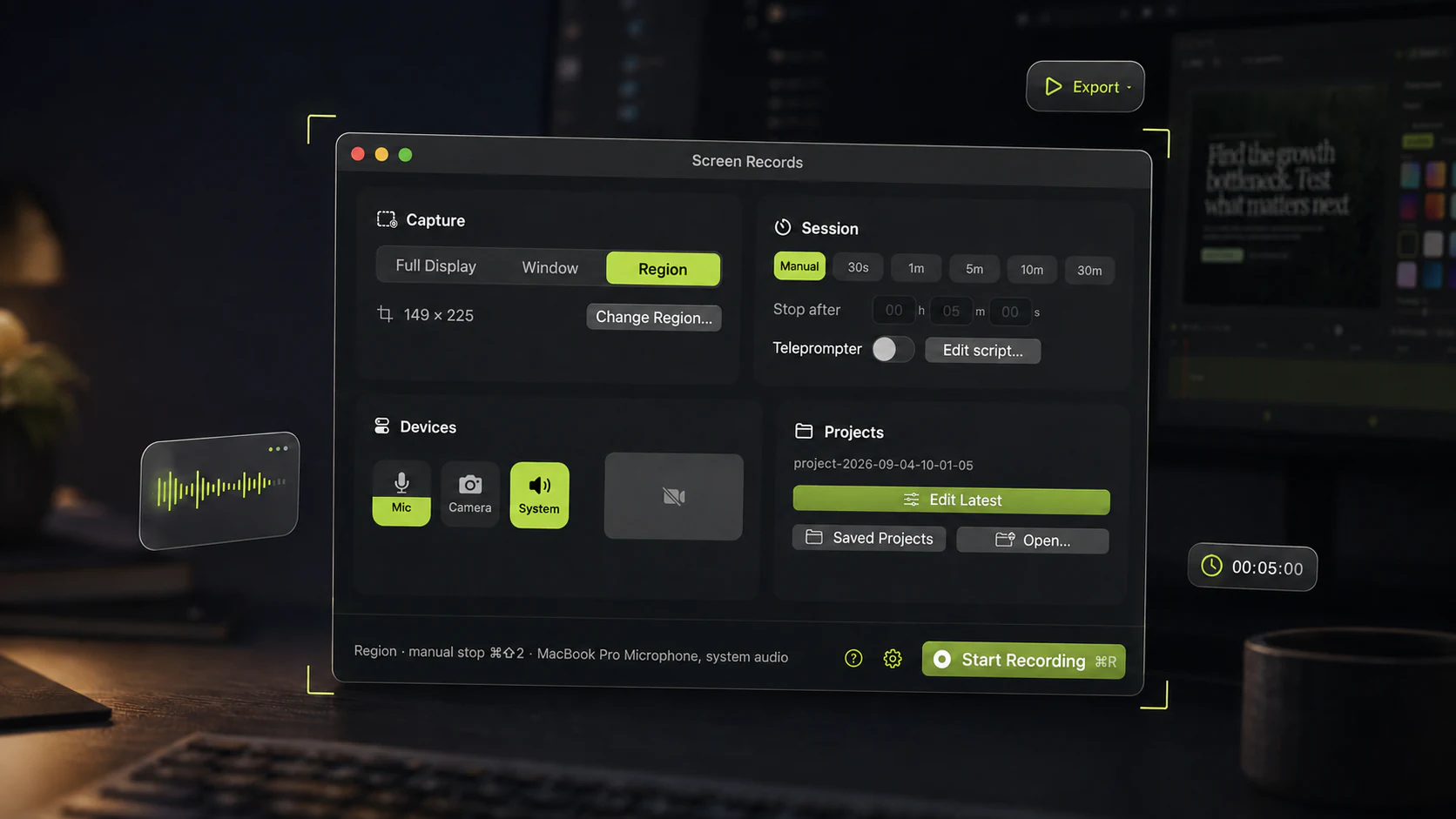
Record a window or a region, not the whole display. A 4K desktop shrunk into an email player is where clicks go to die. Region recording, with the area outlined on screen so you can see the boundary while you work, keeps the pixels where the content is.
A slideshow is the exception. Keynote and PowerPoint seize the whole display the moment you present, which is why recording a deck works the other way round.
4. Rehearse the path once (2 min)
Click through the exact sequence, silently, once. You are not practising the words. You are finding the loading spinner, the empty state, and the modal you forgot about. Every take that dies at 0:30 dies on something this catches.
While recording: 3 minutes
5. Start with the payoff
First ten seconds: what this is and why it matters. Not your name, not the agenda, not "so basically". People decide whether to keep watching before you finish your first sentence.
Weak: "Hey everyone, so I wanted to walk through some of the new stuff we've been working on this sprint…"
Strong: "Reports now export to CSV. Here's how, in forty seconds."
6. Narrate the intent, not the mechanics
Say why you are clicking, not what you are clicking. "Now I'll filter to last month's failures" beats "I click here, then here, then this dropdown."
7. Move the cursor deliberately
Move, stop, then talk. A mouse drifting in circles while someone thinks is the single most distracting thing in a demo. If you need a pause, park the pointer.
8. Do not restart on a stumble
Stop, breathe, repeat the sentence, keep going. You are going to cut it. Restarting from the top is how a three-minute video takes an hour.
For an interruption you can see coming, a colleague at your desk or a build you know will run for two minutes, pause instead of stopping. Paused time never enters the file, so there is no cut to find afterwards.
After recording: 3 minutes
9. Cut the dead air first
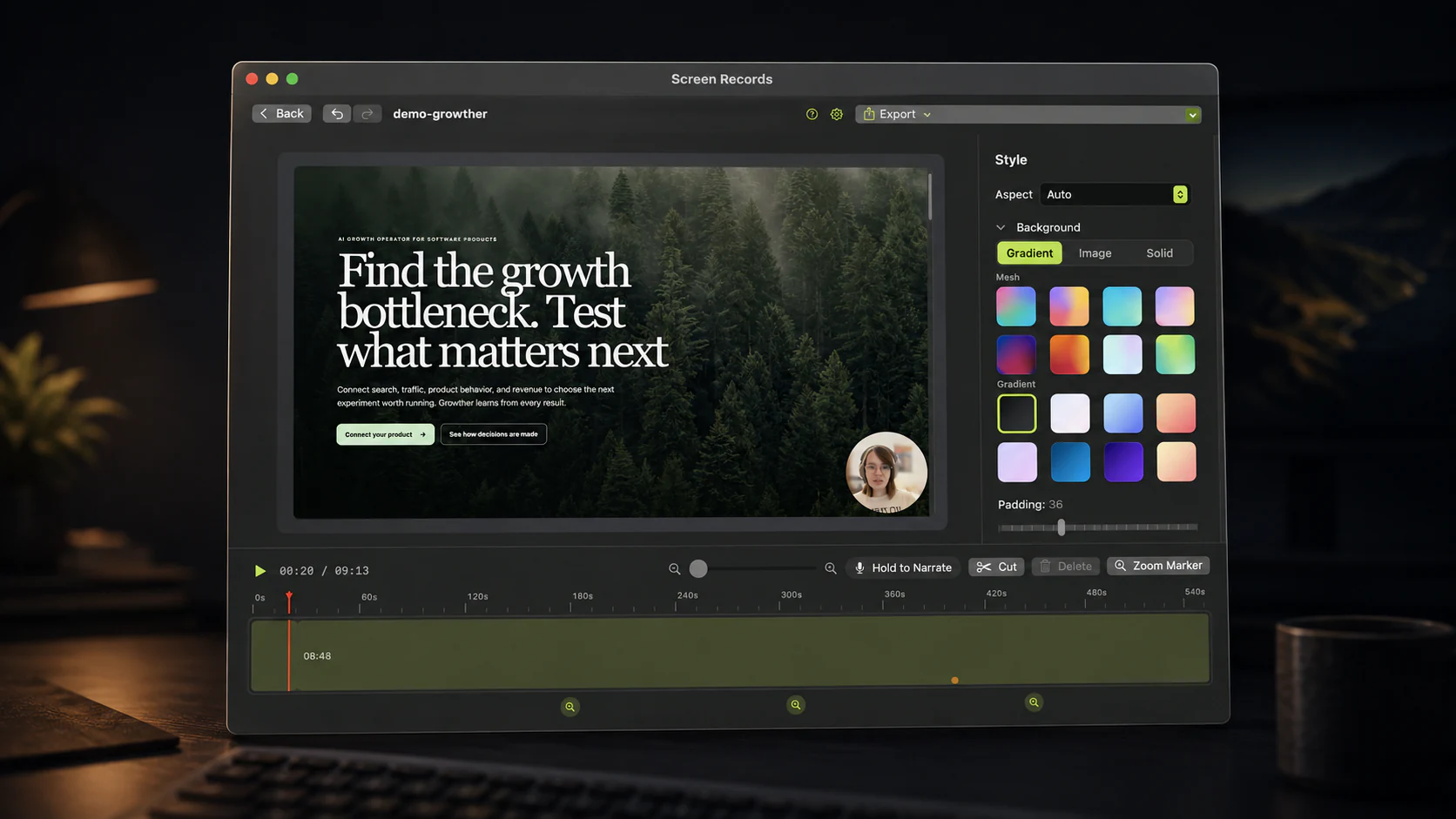
Before anything else: remove the silences, the "umm"s, and the loading spinners. This one pass typically takes 25–40% off the runtime and improves the video more than any other edit.
Split at the playhead, select the dead section, delete. If that takes more than two keys in your tool, get a different tool.
10. Add zoom where the detail is
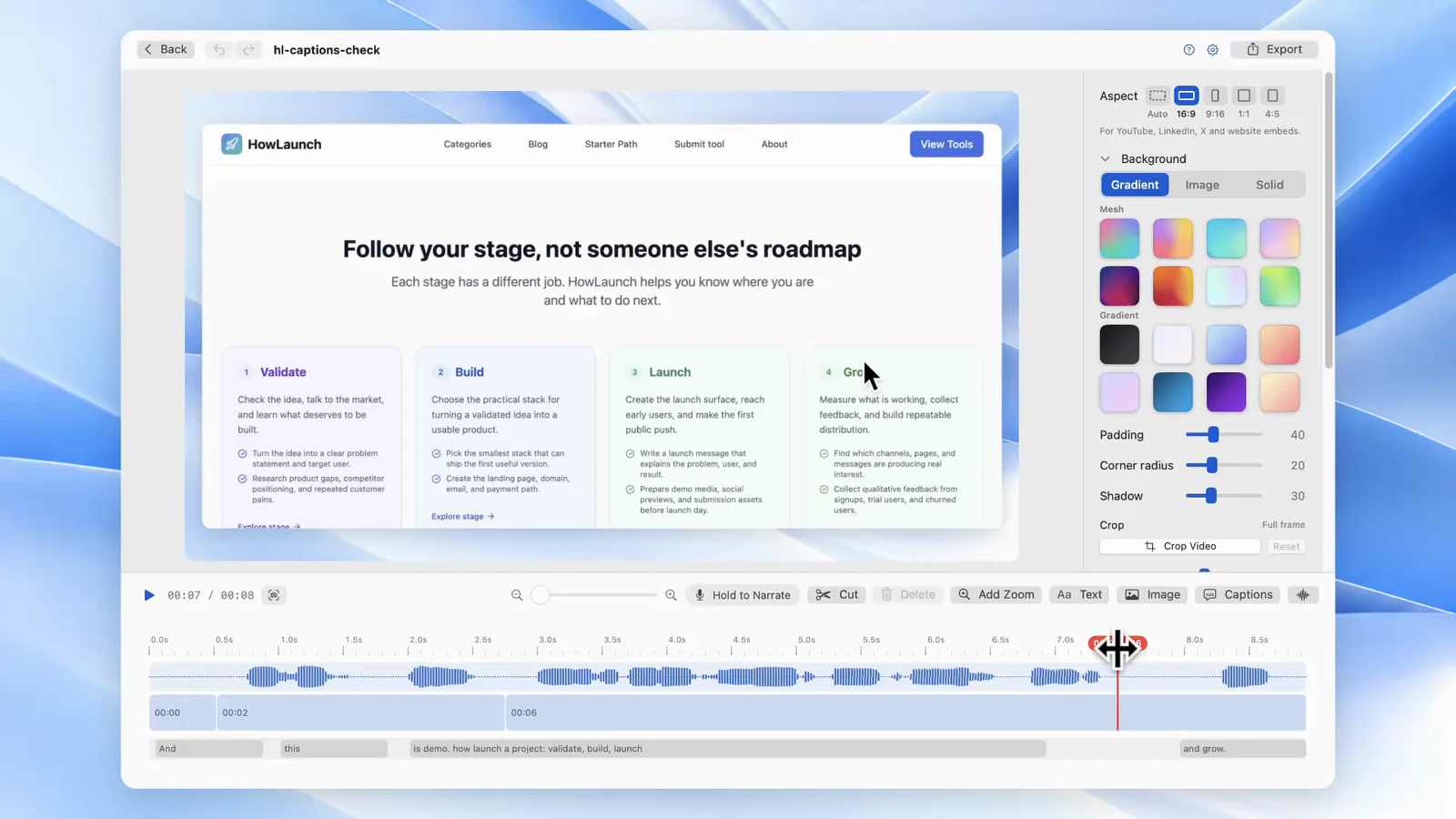
Every place a viewer needs to read something small, a form field or an error message or a menu item, put a zoom marker on it. Zoom in as the click happens, out when you move on. Two or three per minute is plenty; more than that induces motion sickness.
The level you pick and how long you hold it matter more than the count. Both are worth two minutes of reading before your first one.
11. Fix the audio, not the video
If a sentence came out badly, re-record that sentence as voiceover over the timeline rather than reshooting the screen. Viewers forgive a rough cut long before they forgive audio they have to strain at.
12. Watch it once at full size
Not scrubbing. Actually watch it. You will catch the notification you missed, the two seconds of blank screen at the end, and the moment your voice trails off. Then export.
The 30-second version
- One idea per video.
- DND on, tabs closed, demo account.
- Record a window or region, not the display.
- Rehearse the click path once.
- Lead with the payoff.
- Cut stumbles instead of restarting on them.
- Cut dead air, add zooms, patch audio, watch once, send.
Where the tooling matters
Only two steps really depend on your app: cutting dead air, and adding zoom. If those are slow, you will skip them, and skipping them is what makes a demo feel unedited.
If you are the whole production team, that constraint narrows the options quickly.
Screen Records puts both on the same timeline as the recording. Free to use, with the full editor.
Share this post
Keep reading
- GuideHow to record your Mac screen with system audioWhy macOS makes internal audio awkward, the three ways around it, and how to get clean app sound on your recording.
- GuideWhy your Mac screen recording is laggy, silent, or 4 GBSix things that go wrong with Mac screen recordings, five of which have the same cause: where files save, why they stutter, and the one setting that fixes most of it.
- ComparisonQuickTime screen recording: what it can and cannot doQuickTime is free and already installed. Here is exactly where it stops — system audio, zoom, trimming — and what to do about it.