QuickTime screen recording: what it can and cannot do
QuickTime is free and already installed. Here is exactly where it stops — system audio, zoom, trimming — and what to do about it.
QuickTime Player is already on your Mac, records the screen in four clicks, and costs nothing. For a large share of screen recordings it is the correct tool and you should stop reading here.
This post is about the specific walls you hit, because they are predictable and it is better to know them before you record something twice.
How to record with QuickTime
- Open QuickTime Player.
- File → New Screen Recording. On macOS Mojave and later this hands off to the screenshot toolbar (⇧⌘5).
- Choose the whole screen or drag a region.
- Under Options, pick a microphone if you want your voice.
- Click Record, then stop from the menu bar or with ⌘⌃Esc.
The keyboard shortcut ⇧⌘5 gets you to the same place without opening QuickTime at all.
Wall 1: it cannot record system audio
This is the big one. QuickTime records your microphone, not what your Mac is playing. Record a video call, a demo with sound effects, or anything with audio in the app, and the result is silent. Or worse, your microphone picking up your speakers.
This is not an oversight. macOS does not expose an internal audio device to apps, so capturing system sound requires either an audio driver installed at the system level, or an app that implements macOS's own screen-and-system-audio capture APIs.
Workarounds: install a virtual audio device (BlackHole is free and well maintained), route the output through it, and record that as the input. It works, and it means installing a kernel-adjacent audio driver and re-routing your sound every time you want to hear your own Mac normally again.
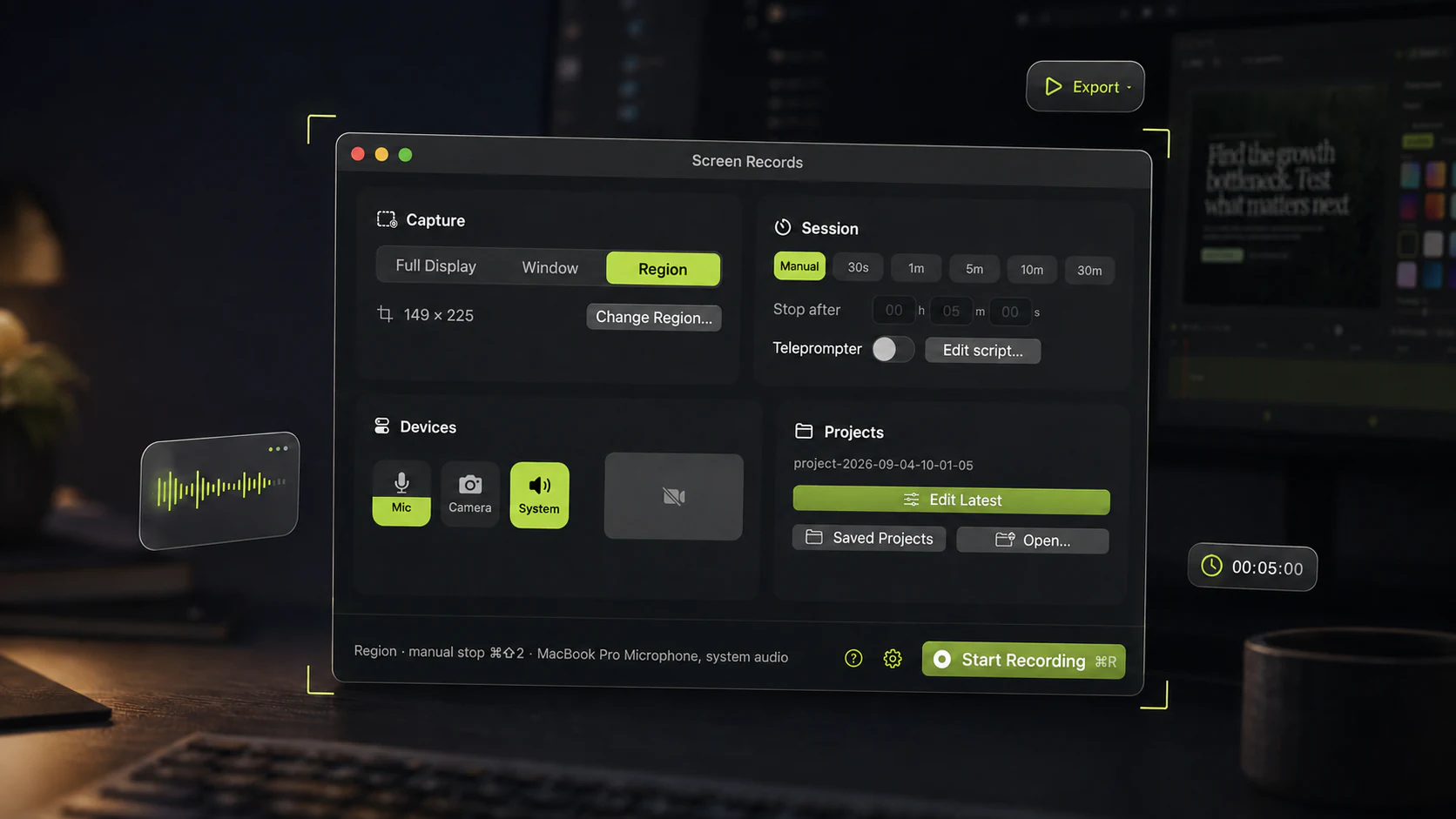
The other option: an app built on macOS's system-audio capture, where system sound is a toggle rather than a routing project. That is what Screen Records does, with mic and system audio landing as separate tracks.
Wall 2: you can trim, but you cannot cut
QuickTime's editing is Trim: shorten the beginning, shorten the end. That is the entire feature set.
So when you say the wrong number at 0:14 of a four-minute walkthrough, your options are record it again, or ship it with the mistake. There is no split, no delete-the-middle, no joining two takes.
In practice this is what makes people re-record the same demo five times. The fix is not willpower. It is a timeline with a cut on it.
Wall 3: no zoom, no emphasis
A 4K display recorded at full size and watched in a small player makes your click targets about six pixels wide. QuickTime has no zoom, no cursor highlight, no way to point at anything.
The usual workarounds, zooming the app itself before recording or cropping in another editor afterwards, cost more time than a zoom marker.
Wall 4: no camera bubble
QuickTime records the screen, or the camera, but not both composited. Founder updates and course intros generally want a face in the corner, and that means a second app.
Wall 5: file sizes
QuickTime writes large .mov files, and a few minutes can run to hundreds of megabytes. It is
not doing anything wrong. It is just not optimising for something you will attach to an email.
Expect to re-encode before sending.
What QuickTime is genuinely good at
Do not overcorrect. QuickTime remains the best choice when:
- you need a capture in the next ten seconds;
- there is no audio, or only your voice;
- the video is going to one person who will watch it once;
- you are on someone else's Mac and installing anything is not an option.
For a bug report or a quick "here, look at this", installing software would be the mistake.
When to move on
Move when you notice yourself doing one of these:
- re-recording because of a small mistake in the middle;
- explaining in text what the video should have shown;
- installing an audio router just to capture app sound;
- apologising for the file size.
That is the point where the tool is costing more than it saves. It is free to use if you want to compare on your own work, with the full editor and no account.
Share this post
Keep reading
- ComparisonScreen Records vs Screen StudioScreen Studio 4.0 against Screen Records 0.1.5: automatic polish and share links on a subscription, or local editing, AI-assistant edits over MCP and a one-time license.
- ComparisonThe best Mac screen recorders in 2026An honest comparison of the Mac screen recording apps worth considering — what each is good at, what it costs, and when to pick which.
- GuideHow to record your Mac screen with system audioWhy macOS makes internal audio awkward, the three ways around it, and how to get clean app sound on your recording.