How to record your Mac screen with system audio
Why macOS makes internal audio awkward, the three ways around it, and how to get clean app sound on your recording.
Recording your Mac's screen is easy. Recording the sound your Mac is making is the part that sends people to search engines, because the built-in tools do not do it and the reason is not obvious.
Here is why, and the three ways around it.
Why macOS makes this awkward
macOS treats audio inputs and outputs as separate worlds. Your microphone is an input that apps can record. Your speakers are an output, and for years there was no supported way for an app to ask the system for whatever is currently playing.
This is a privacy decision as much as an architectural one. An app that can silently capture everything you hear can capture every call you take.
So the built-in recorders, QuickTime and the ⇧⌘5 toolbar, record microphones only. Record a video call with QuickTime and you get your side of it, plus silence where the other person was.
More recent macOS versions do expose system audio capture to apps that ask for it explicitly and hold Screen Recording permission. Apps built on that API can offer system sound as a checkbox. The built-in recorders still do not.
Option 1: a virtual audio device (free)
The long-standing workaround. A virtual device such as BlackHole installs as both an output and an input: send your Mac's sound to it, then record it as if it were a microphone.
- Install BlackHole (free, open source).
- Open Audio MIDI Setup and create a Multi-Output Device containing both your real speakers and BlackHole. Without this you record fine but hear nothing.
- Set your Mac's output to that Multi-Output Device.
- In QuickTime, choose BlackHole as the recording input.
Good: free, and it works.
Less good: system audio and your microphone are now one merged track, so you cannot adjust them separately afterwards. Volume controls behave oddly on a Multi-Output Device. You have to remember to switch your output back. And you have installed a system-level audio driver, which some managed Macs will not permit.
Option 2: a recorder with system audio built in
An app implementing macOS's screen-and-system-audio capture can record app sound directly. No driver, no routing, nothing to switch back afterwards.
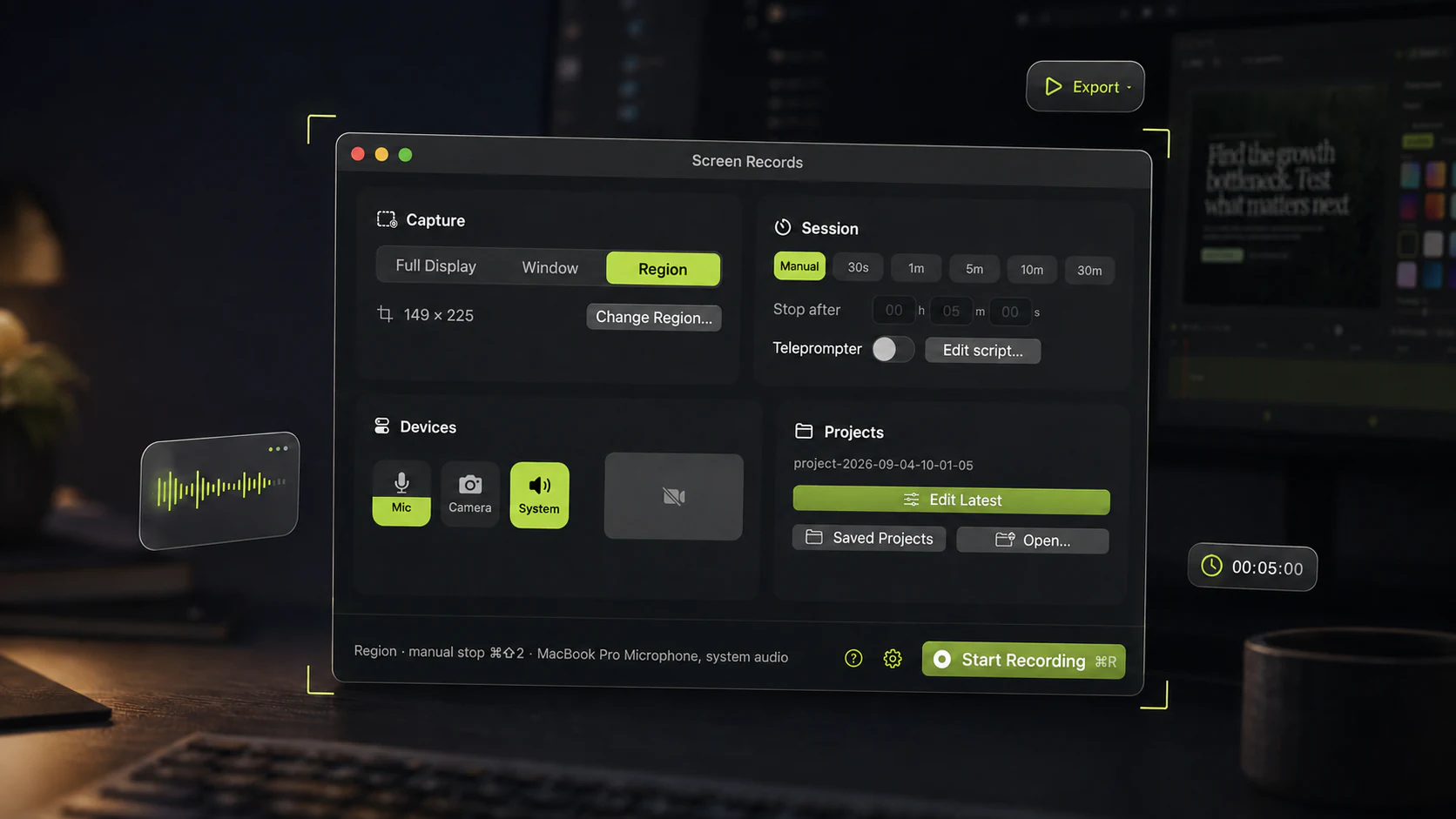
In Screen Records it is one of three device toggles: microphone, camera, system audio. They record as separate tracks, which is the part that matters later. You can export the audio on its own, drop the mic and keep the app sound, or record a clean voiceover over the top without fighting the original.
Option 3: record the source separately
Under-rated for anything scripted. Record the screen silently, record the narration separately, and combine them.
You get better audio, because you can redo one sentence. You get a shorter script under less pressure, and video that is not tied to the pace of your speech. The cost is an extra step, unless your editor lets you record narration over the timeline, which is what hold-to-narrate is for.
Getting the audio right
Whichever route you take:
- Wear headphones. Speaker output bleeding into the microphone is the most common cause of hollow, echoing screen recordings.
- Silence notifications. Turn on Do Not Disturb before you press record. A Slack ping at 2:03 is a re-record if you cannot cut.
- Record 3 seconds of room tone at the start. It gives you something to fade into.
- Check levels first. Ten seconds of test recording costs less than discovering clipping after a twenty-minute take.
- Keep the tracks separate if your tool allows it. Merged audio cannot be un-merged.
Quick answers
Can QuickTime record internal audio? No, not without a virtual audio device.
Does ⇧⌘5 record system sound? No. It records microphones only.
Is BlackHole safe? It is open source, widely used, and actively maintained. It is still a system audio driver, so treat it as software you are installing at that level.
Can I record a Zoom or FaceTime call? Technically yes, with system audio capture. Legally, recording consent laws vary by jurisdiction and are frequently two-party. Tell people you are recording. It is also just better manners.
Why is my recording silent when I hear sound? Almost always output routing: your Mac is playing to speakers while the recorder listens to a virtual device, or a system-audio toggle was left off.
Silence is one of six things that commonly go wrong with a Mac capture. The rest, including why recordings stutter and where macOS puts them, are on their own page.
Share this post
Keep reading
- GuideWhy your Mac screen recording is laggy, silent, or 4 GBSix things that go wrong with Mac screen recordings, five of which have the same cause: where files save, why they stutter, and the one setting that fixes most of it.
- GuideHow to add zoom to a screen recordingWhen a zoom helps, the level and hold time that work, and how to place zooms after recording on a Mac, in Screen Records, iMovie or a pro editor.
- ComparisonScreen Records vs Screen StudioScreen Studio 4.0 against Screen Records 0.1.5: automatic polish and share links on a subscription, or local editing, AI-assistant edits over MCP and a one-time license.