I let Claude Code edit my screen recording
One prompt, 48 seconds: a 36-second raw take came back cut to 17, with captions, zooms and a lighter background. What it did and what it sent to the AI.
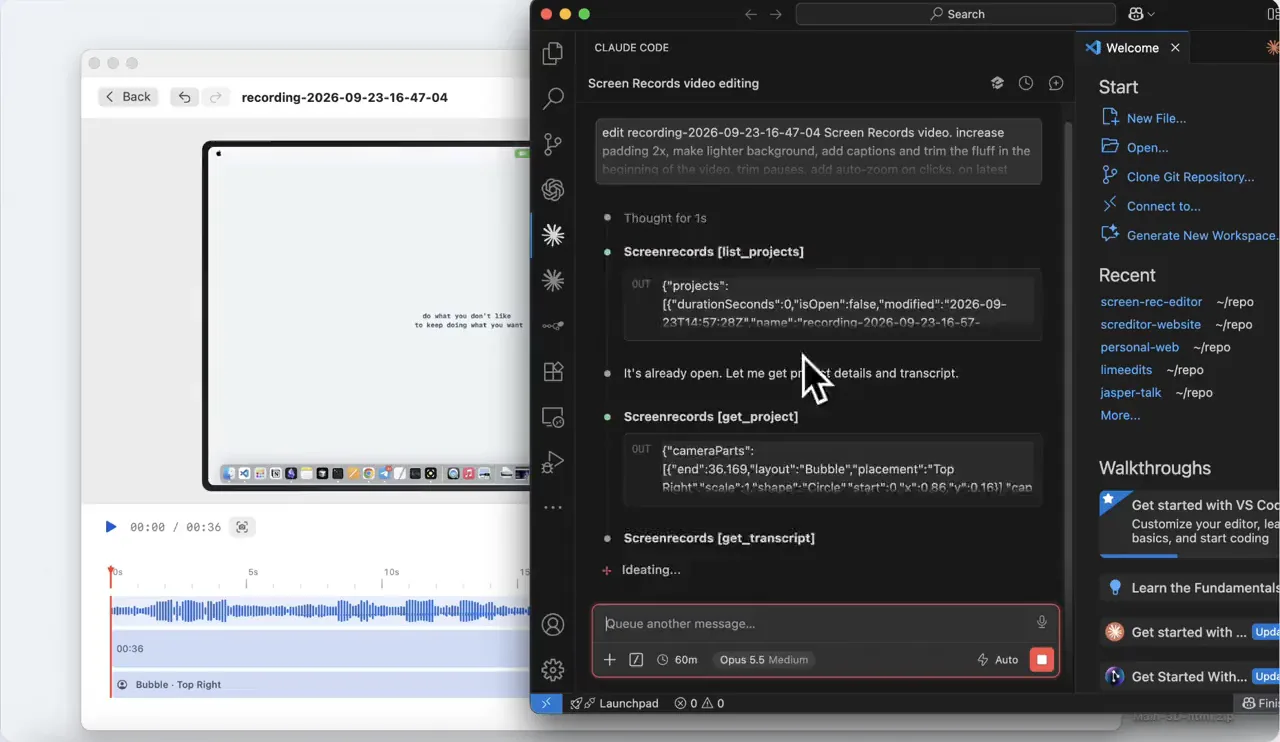
I typed one paragraph into Claude Code and did not touch the editor after that. 48 seconds later a 36-second raw take had become a 17-second video with captions, zooms on every click, a lighter background and no dead intro, already exported as an MP4.
Screen Records now has an MCP server built in. This is what that looks like on a real recording, including the parts where the AI made a call I had not asked for.
The full-length version, with the before and after side by side, is on the Edit with AI page.
The recording
A 36-second test of a planner app. It had everything a quick take usually has: ten seconds of desktop at the start while I said "Hi there, testing my MCP", then a few pauses while I typed into the app. The kind of recording you either send as it is or put off editing for a day.
The prompt
This is all I wrote:
edit recording-2026-09-23-16-47-04 Screen Records video. increase padding 2x, make lighter background, add captions and trim the fluff in the beginning of the video. trim pauses, add auto-zoom on clicks, on latest …
No timestamps, no settings names. I did not tell it which background counts as lighter or where the fluff ends.
What it did
It started by looking. It pulled frames from the video and read the transcript before changing anything. That is how "the fluff in the beginning" became something exact: the first 10 seconds, desktop on screen and me saying "Let's cut the fluff". It cut them, and the video now opens on the planner.
Then the list, from its own report at the end:
- Padding doubled, from 19 to 38.
- Background changed from Graphite to Mist, the light preset.
- Captions transcribed and placed at the bottom in the default style.
- Pauses: five removed, 8.7 seconds in total.
- Zoom on clicks turned on, which gave three zooms that follow the cursor.
- The last line plays with the camera full screen.
- Export at 1080p, after it checked the frames once more.
Two things I did not ask for, and liked. Captions need a 540 MB speech model the first time, and it stopped to ask before downloading it. And it told me that two of the five pauses were while I was typing, so the typing now plays faster on screen. It offered to put those two back if that looked wrong.
That second one is the honest limit. A pause while typing is dead air to a transcript, and sometimes it is the moment the viewer reads what you typed. The AI cannot know which one you meant, so it said what it did and left the call to me.
Why it can do this at all
The AI is not generating a new video. It works through the same edits the editor gives you: cut, zoom, caption, style, export. Every change it makes is one step on the undo stack, and the original recording is never modified, so anything it gets wrong is one ⌘Z away. You can keep working in the editor at the same time and see each change arrive on the timeline.
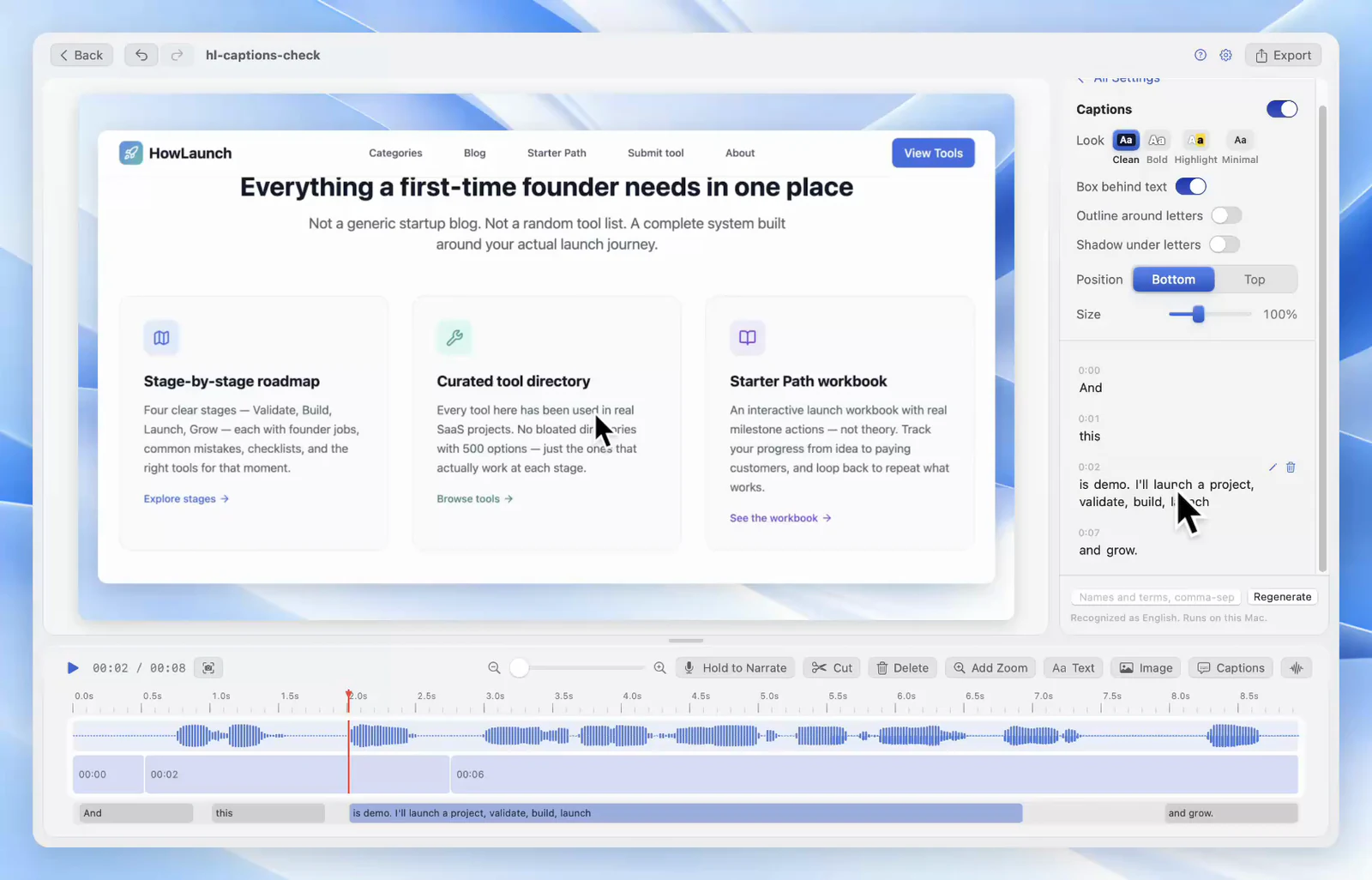
What goes to the AI
The project stays on your Mac. The server runs inside the app, and the video file is never uploaded. What the AI reads to make its edits does go to that AI provider: the transcript, and any frames it pulls to look at the screen. It runs on your own Claude, ChatGPT, Codex or Cursor subscription, and Screen Records charges nothing extra for it.
If a recording shows a customer's data, edit that one by hand, or leave the switch off.
Setting it up
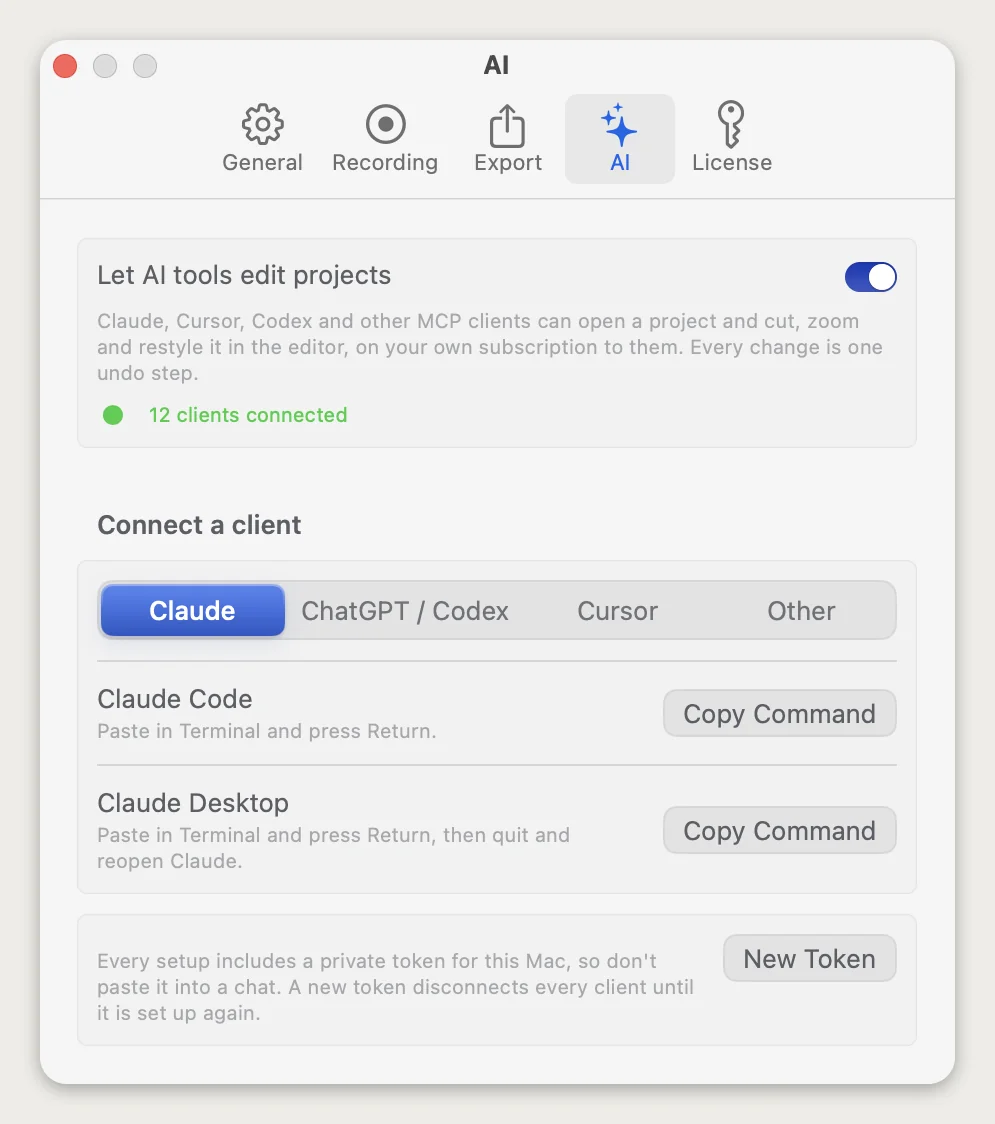
Open Settings, go to the AI tab and turn on "Let AI tools edit projects". Pick your client: Claude Code and Claude Desktop, ChatGPT and Codex, Cursor, or Other for any MCP client where you know where the setup goes. Copy the command, paste it in Terminal. That is the whole setup, and the Edit with AI page has the details for each client.
Then open a recording you have been putting off and ask for the edit in plain words.
Share this post
Keep reading
- Product updateIntroducing Screen Records 0.1.0Why we built a Mac screen recorder with an editor, what shipped in 0.1.0, and what a one-time license buys you.
- GuideWhy your Mac screen recording is laggy, silent, or 4 GBSix things that go wrong with Mac screen recordings, five of which have the same cause: where files save, why they stutter, and the one setting that fixes most of it.
- ComparisonFree screen recorders for Mac with no watermarkWhich Mac screen recorders are free with no watermark, which are trials or capped plans, and a 60-second test to run before you record a real take.